
Guide 4 of 6
Invite a teammate
Invite someone to your organisation by email and choose their role.
On this page
Video coming soon
Steps
Open the Members page
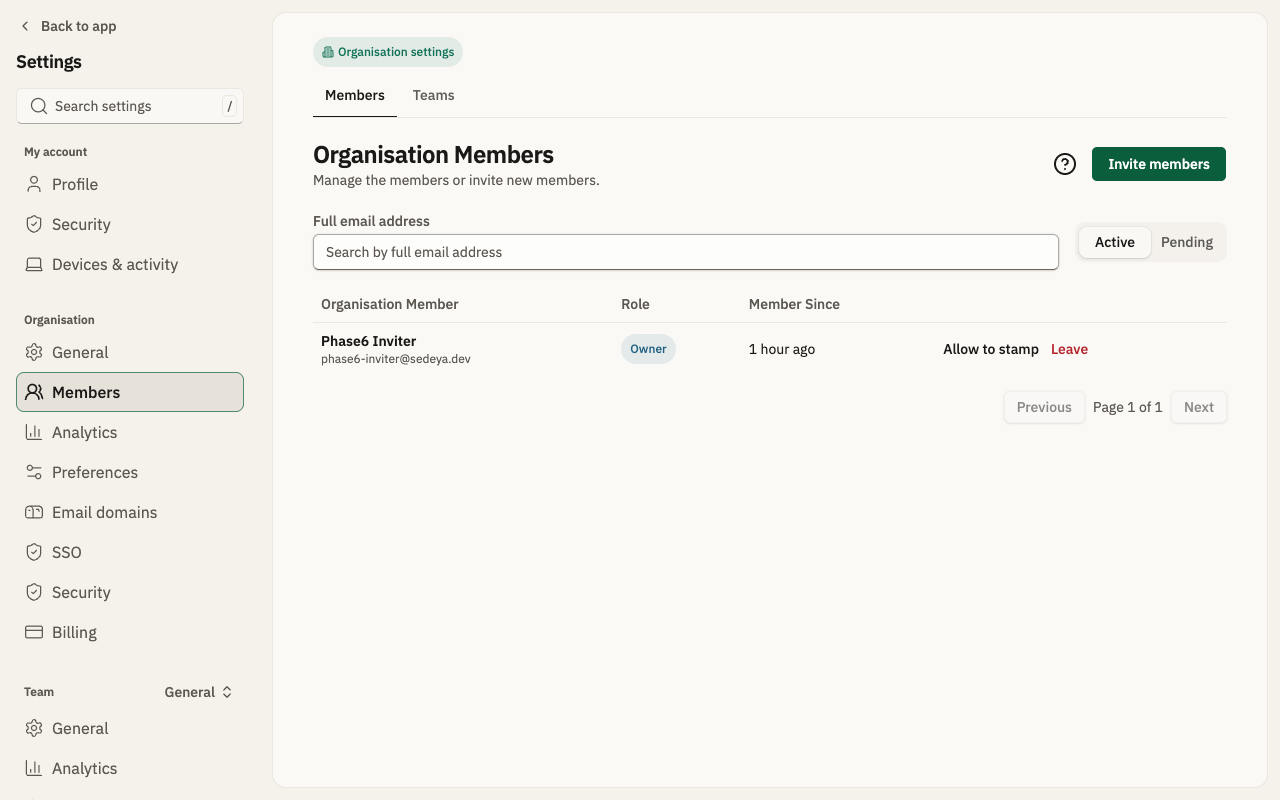
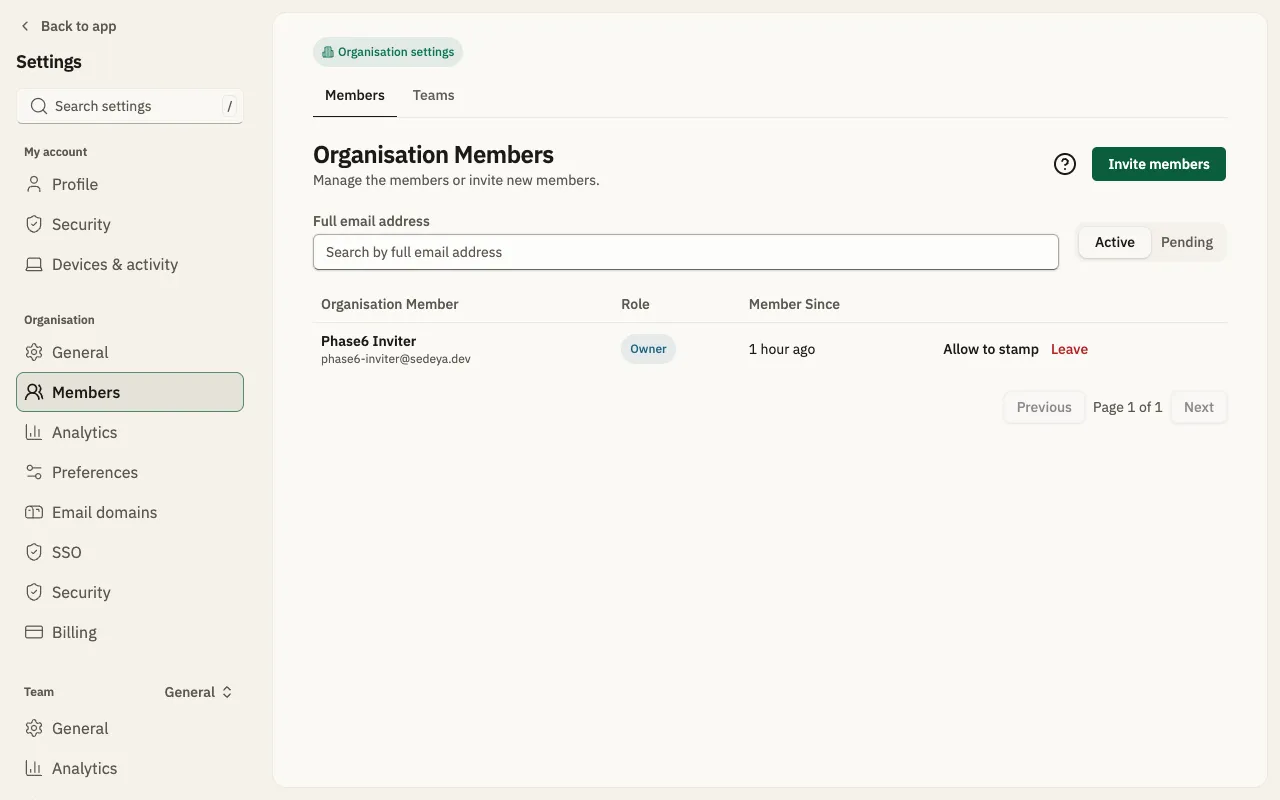
In the app's sidebar, click “Organisation”. In the settings that open, click “Members” under “Organisation”. “Invite members” is at the top right of “Organisation Members”.
Add the email and role
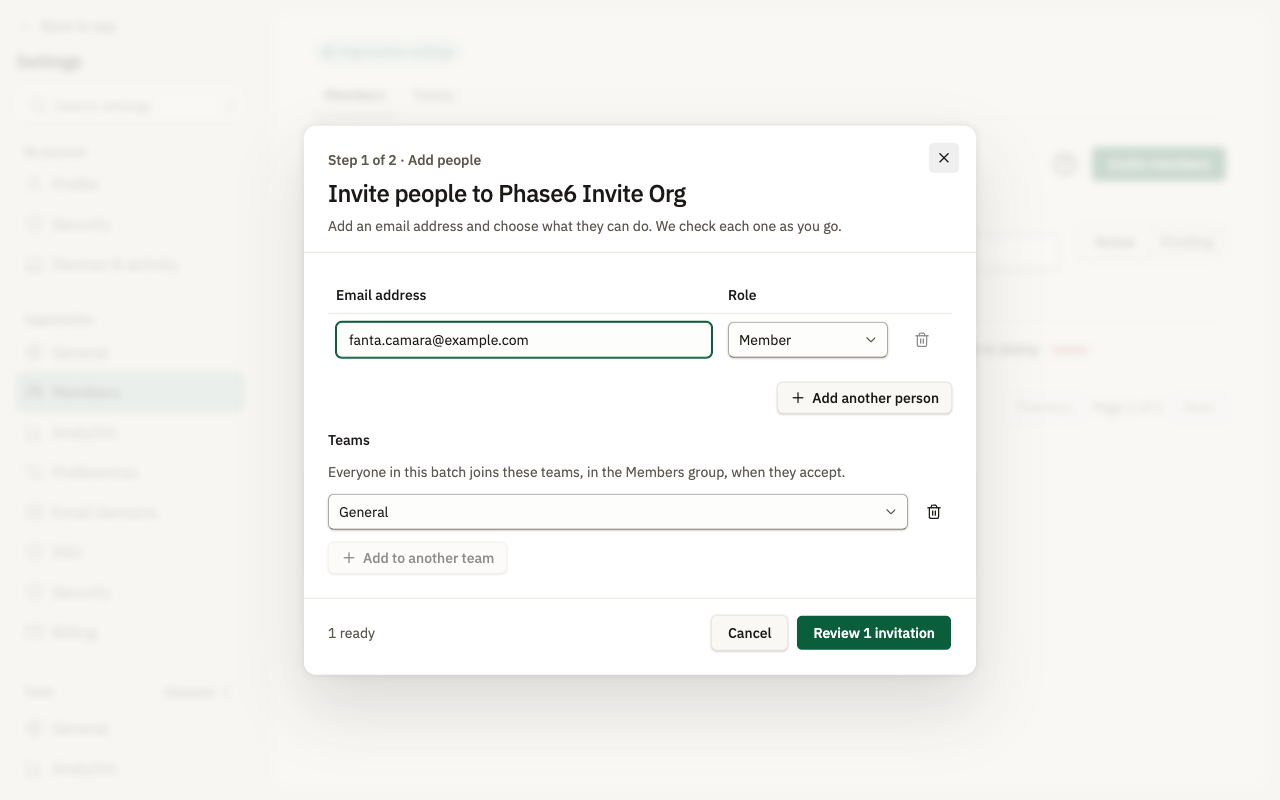
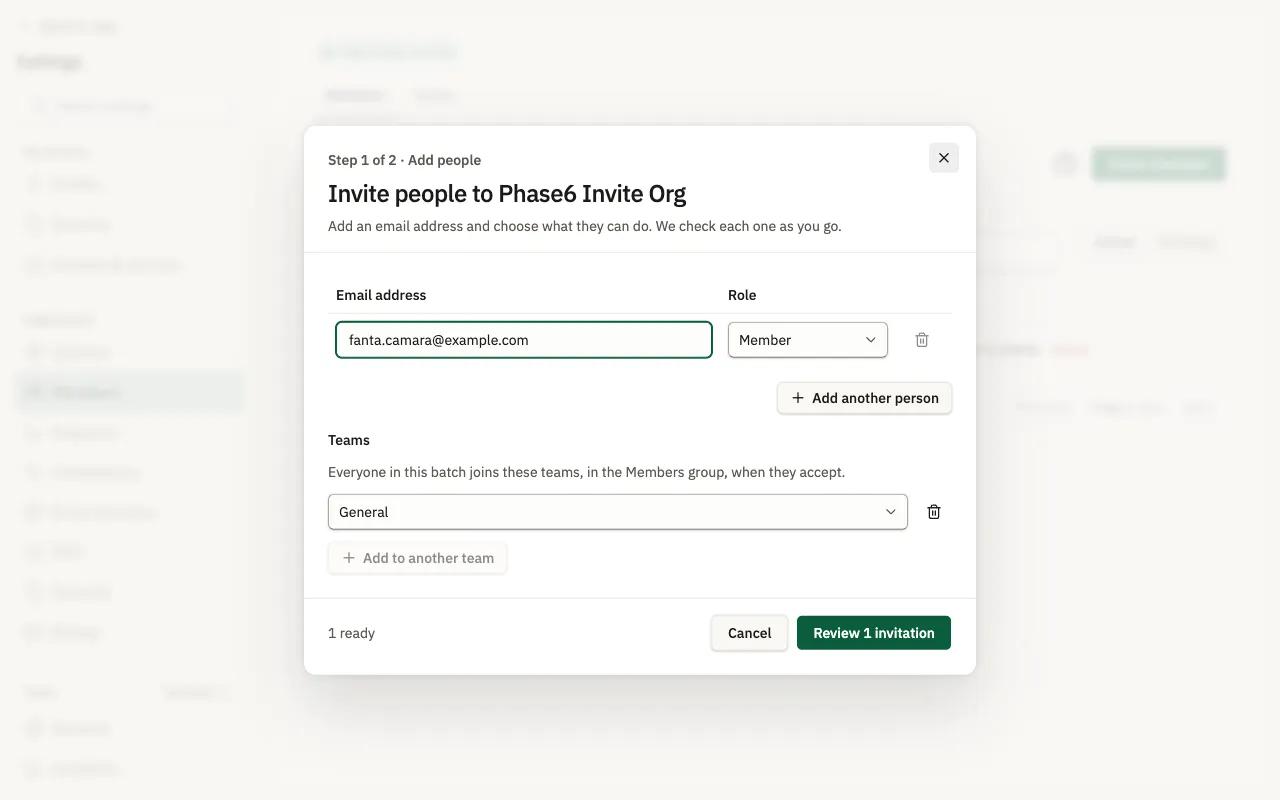
Click “Invite members”. Enter the “Email address”, choose the “Role” (“Member” by default) and pick the team under “Teams” (“Add to another team” adds one; the teams apply to everyone you invite at once). “Add another person” adds a row.
Review the invitation
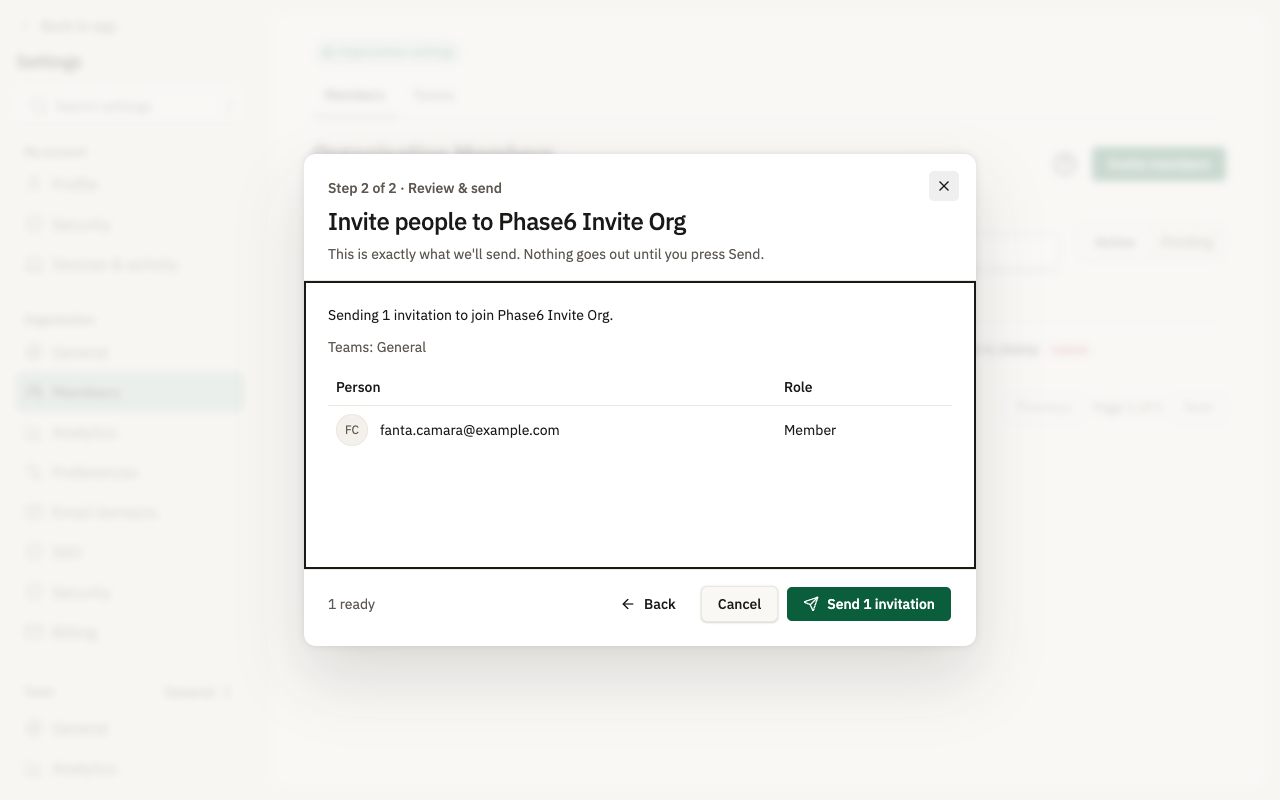
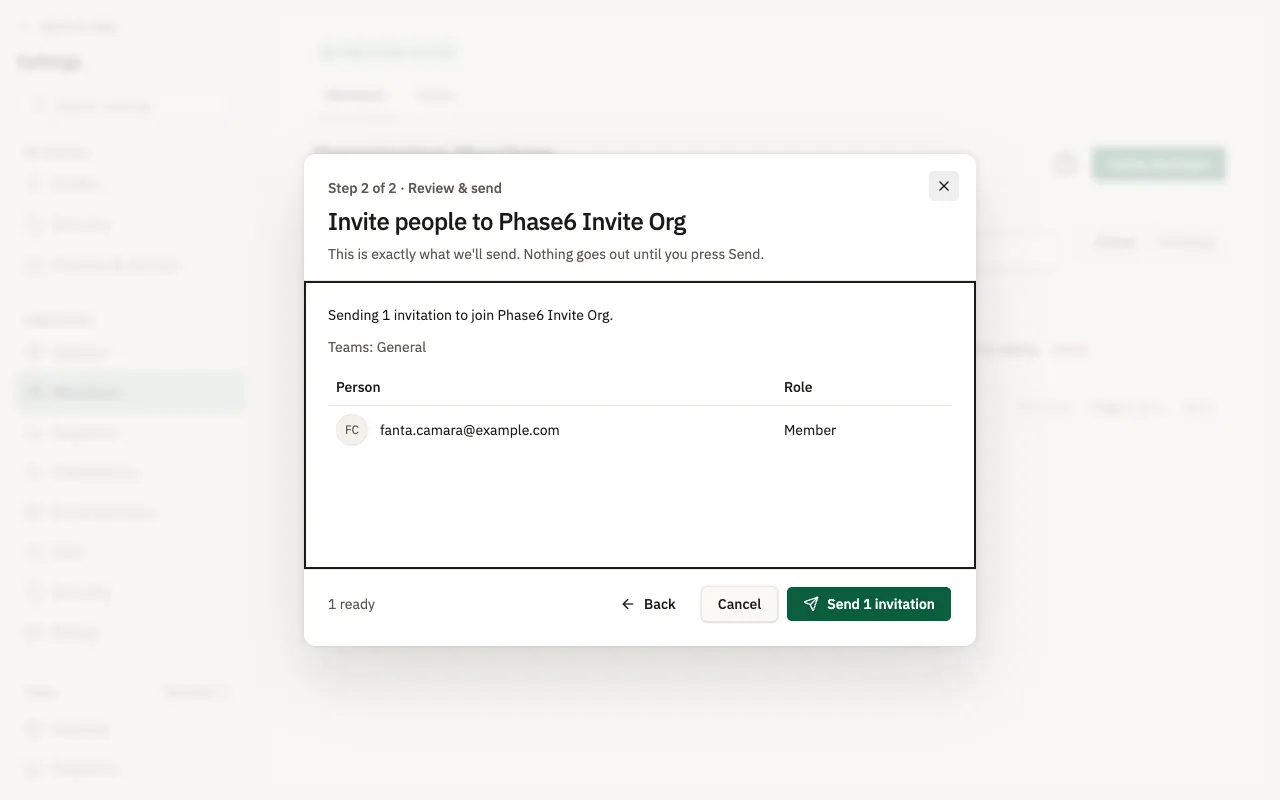
Click “Review 1 invitation”. Step 2 of 2 shows exactly what will be sent; nothing goes out yet.
Send it
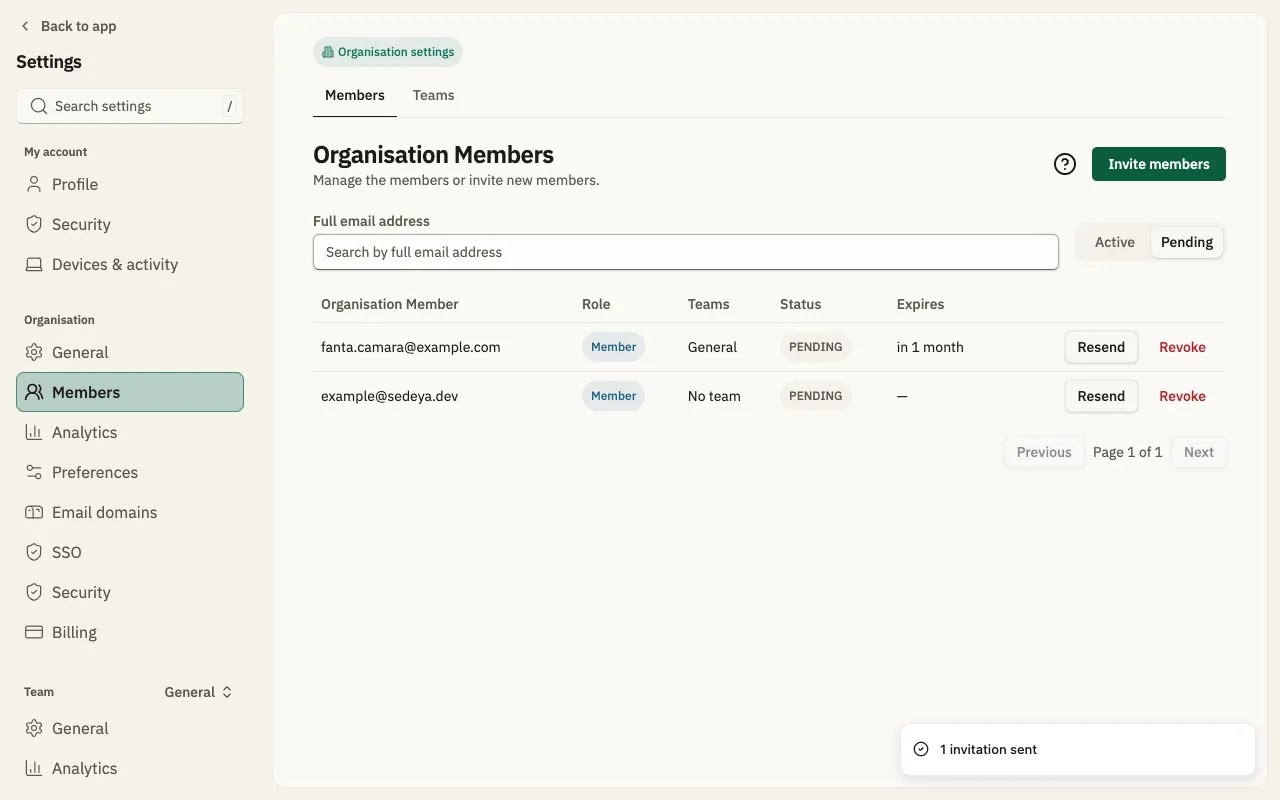
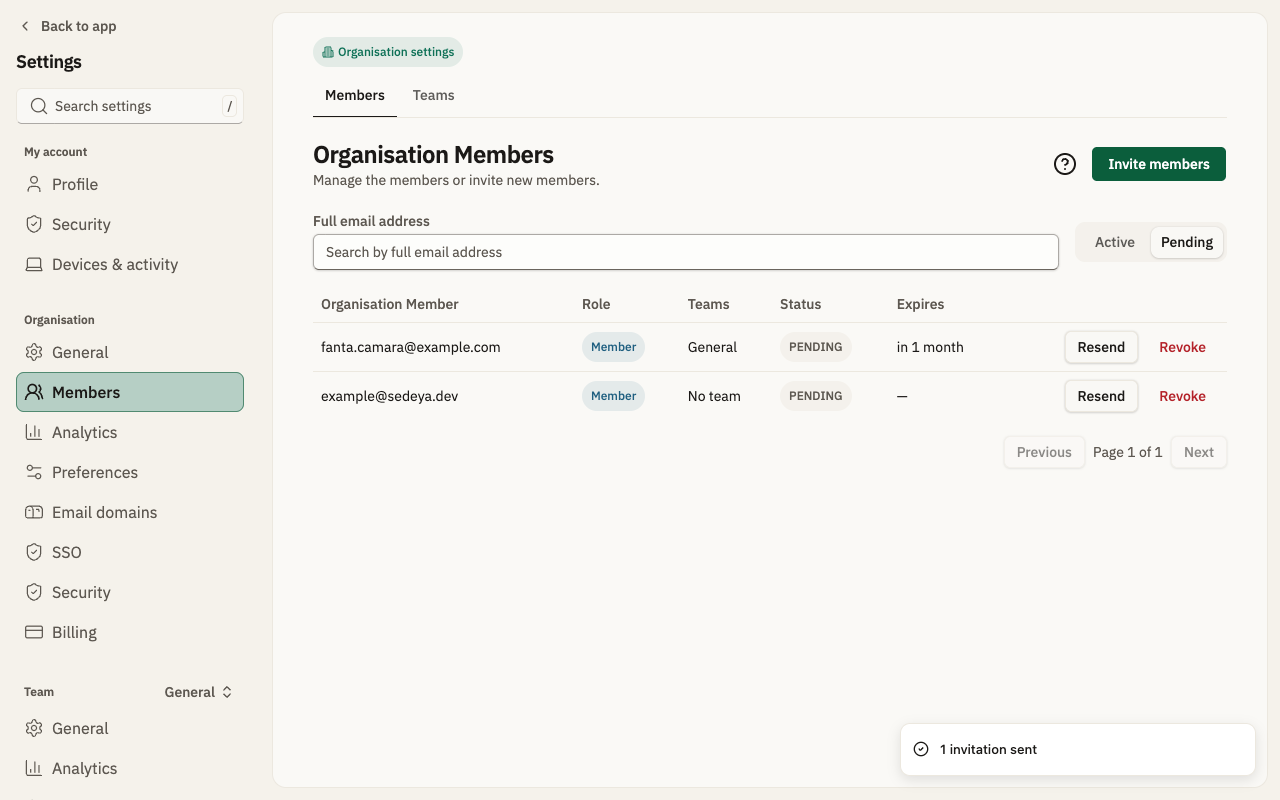
Click “Send 1 invitation”. “1 invitation sent” appears and the person is listed under “Pending”, where you can “Resend” or “Revoke” it.