
Reuse a document as a template
Save a document as a template, publish it and create new documents from it.
On this page
Video coming soon
Steps
Save it as a template
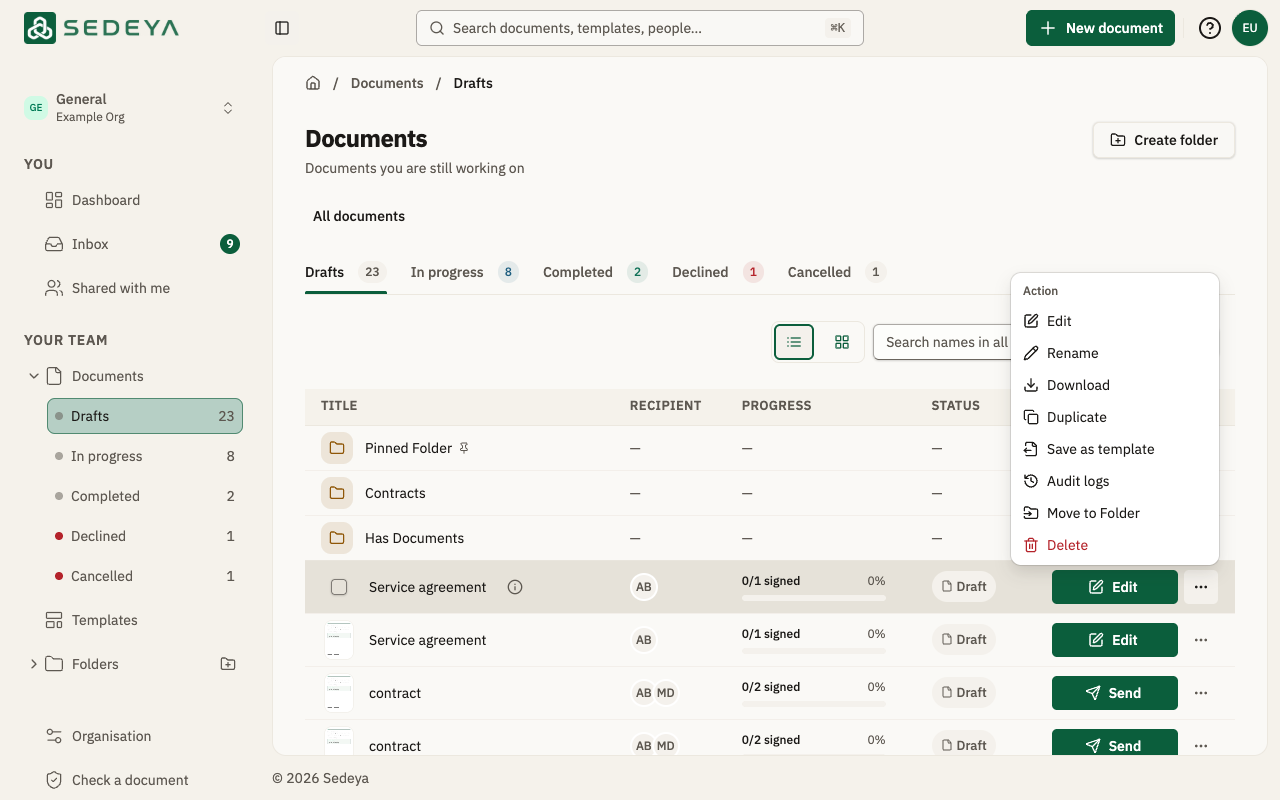
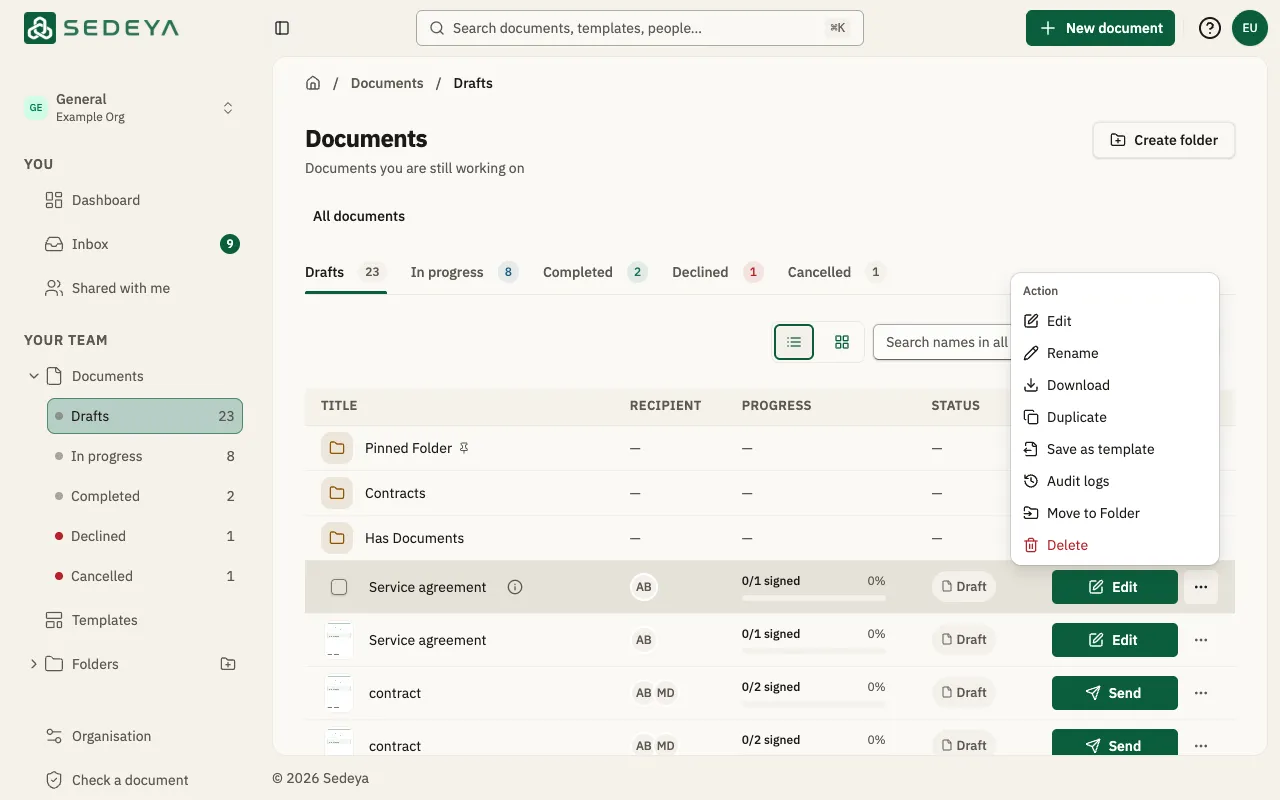
In Documents, open the “…” menu on the document's row and choose “Save as template”. “Template Created” appears.
Find it in Templates
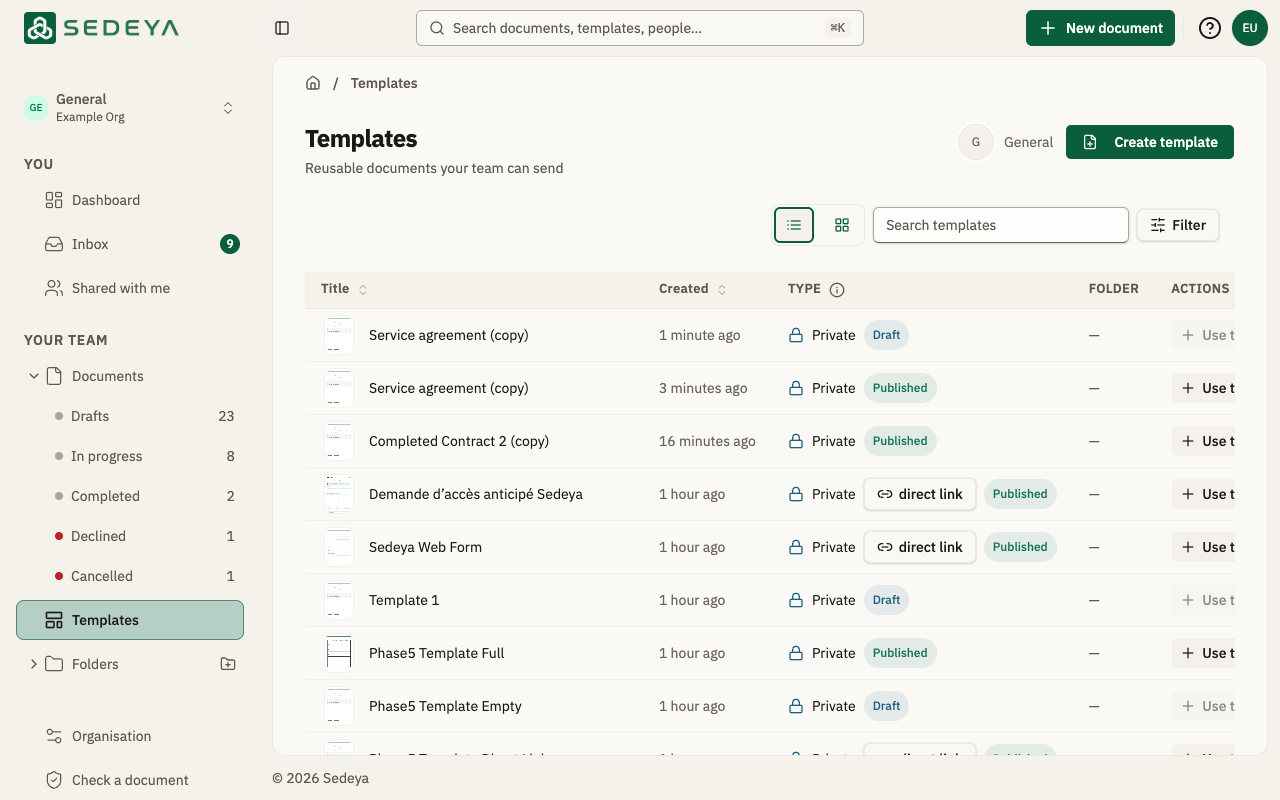
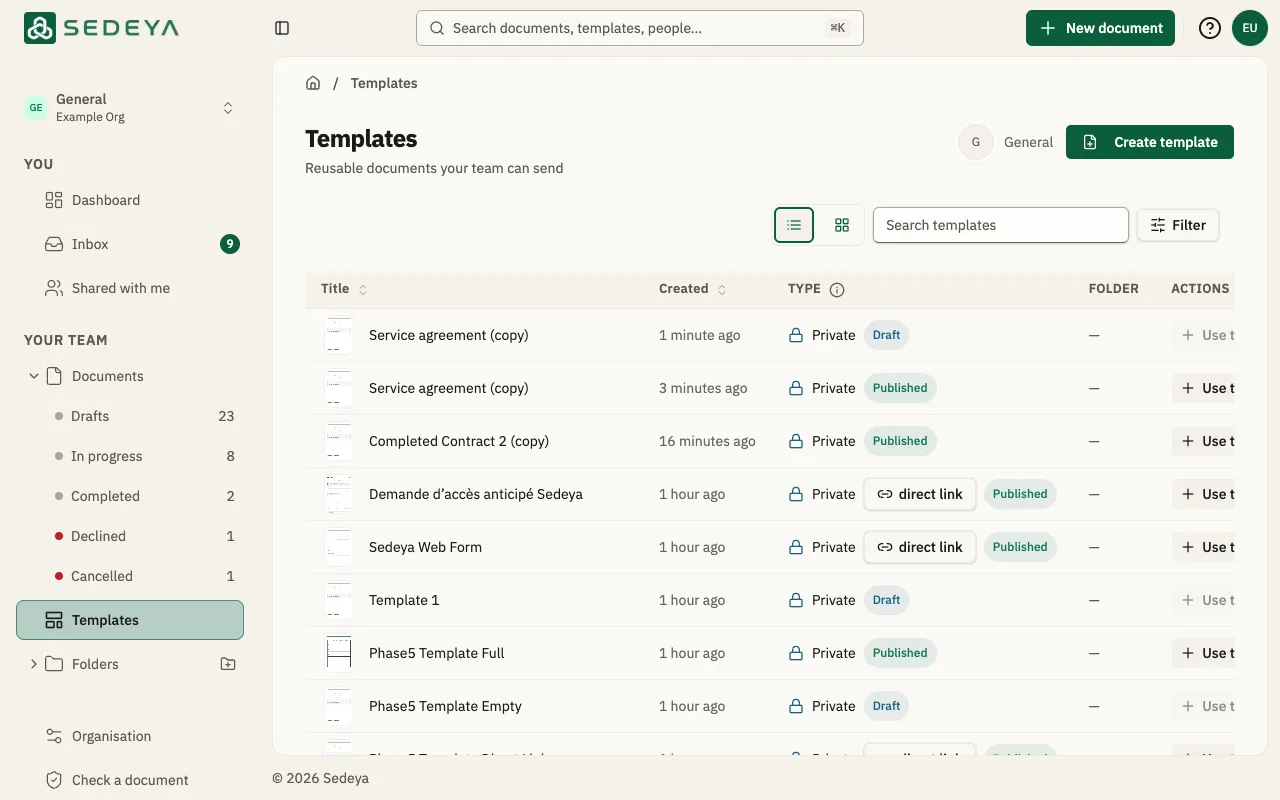
Open “Templates”. The copy, named after the document with “(copy)”, is a “Draft”, and “Use template” stays off until you publish it.
Place its fields
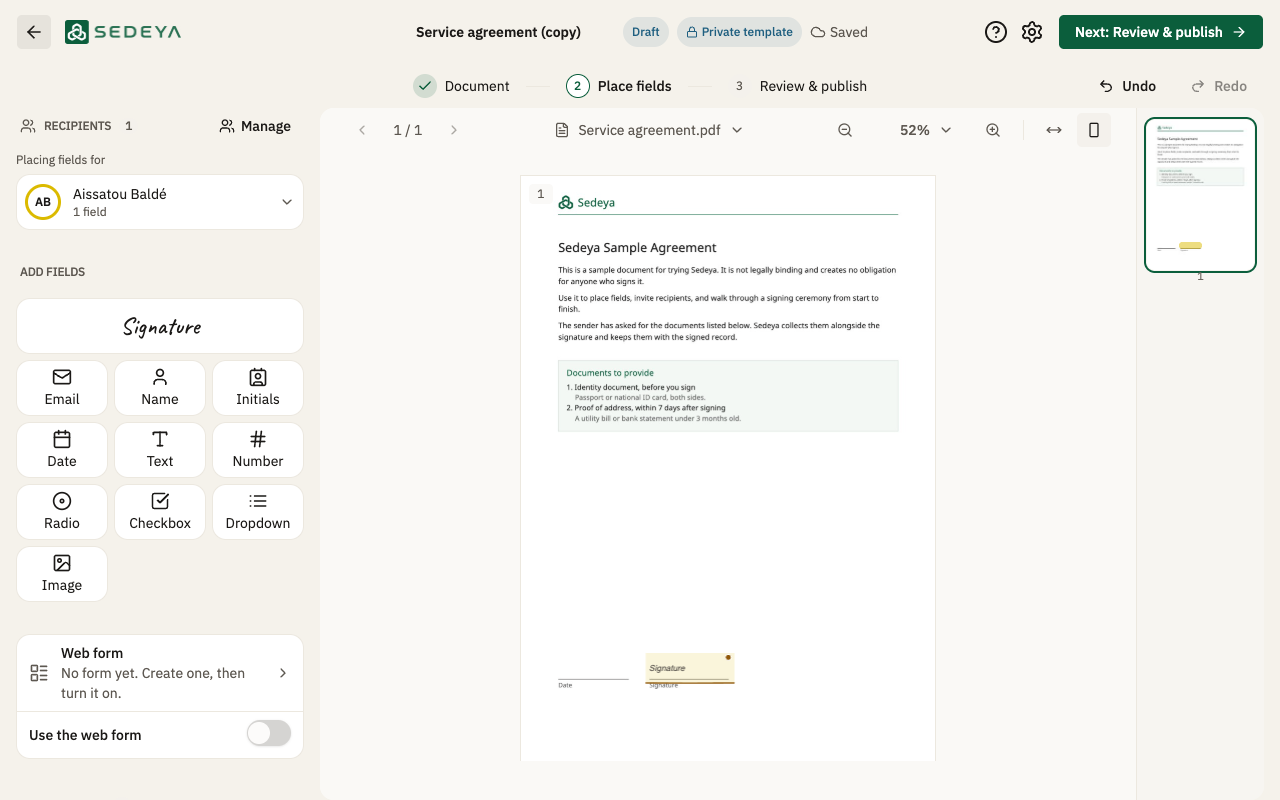
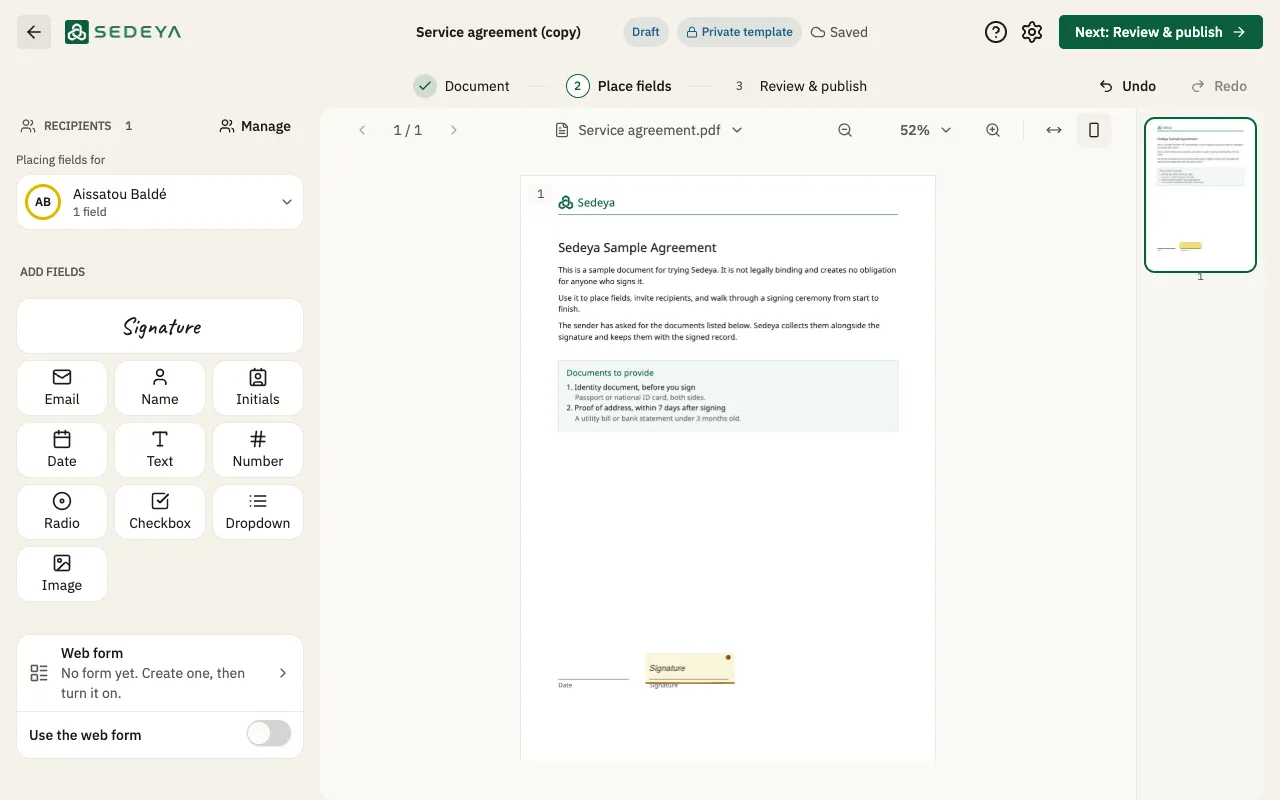
Click the template's title, then “Edit”. On “Place fields”, place a “Signature” field for each signer: the template starts without fields.
Publish it
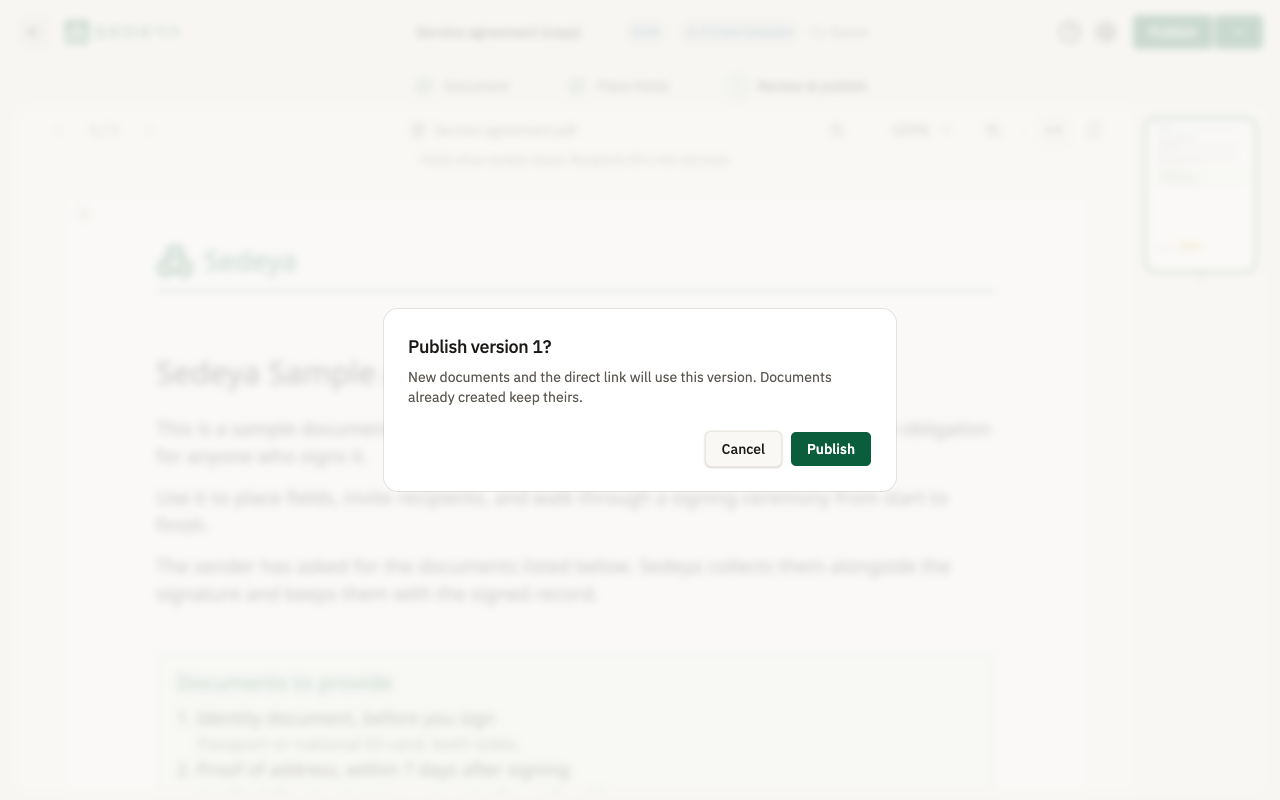
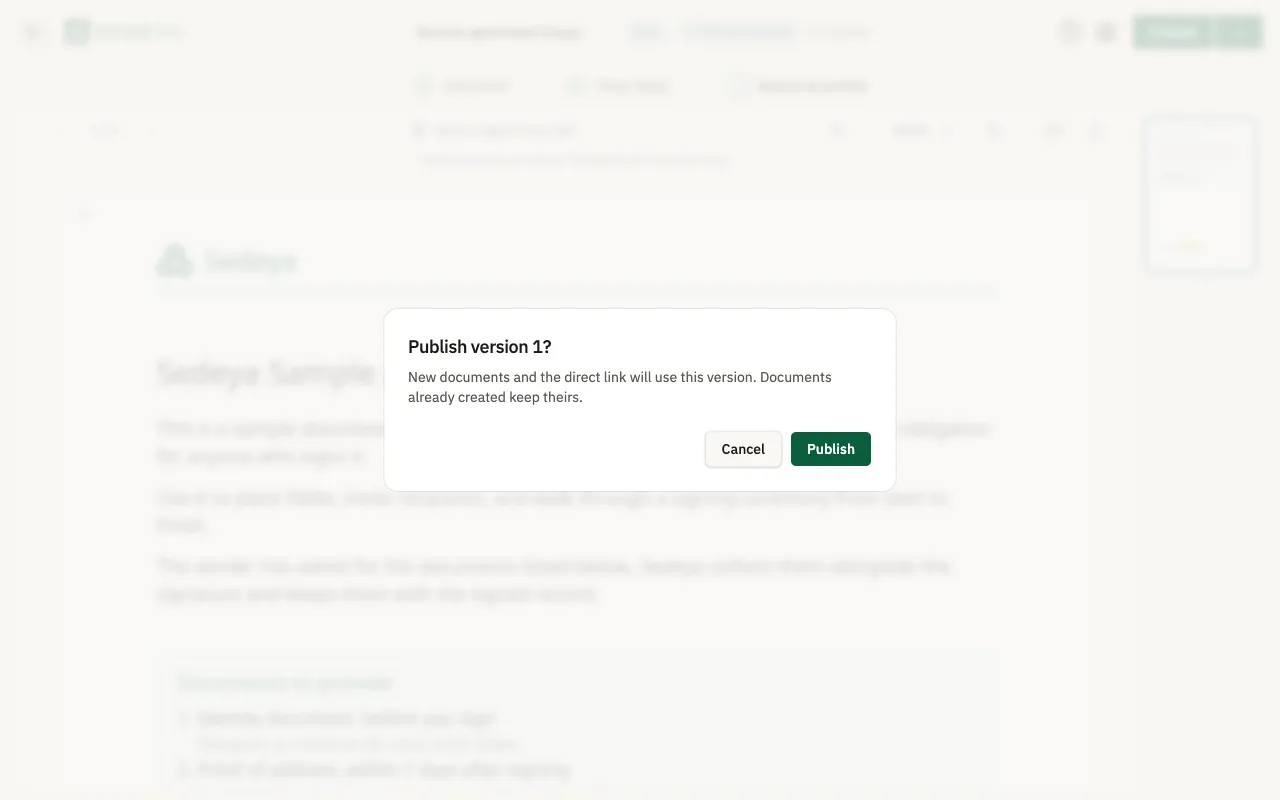
Click “Next: Review & publish”, then “Publish”, and confirm “Publish version 1?”. New documents use this version.
Create a document from it
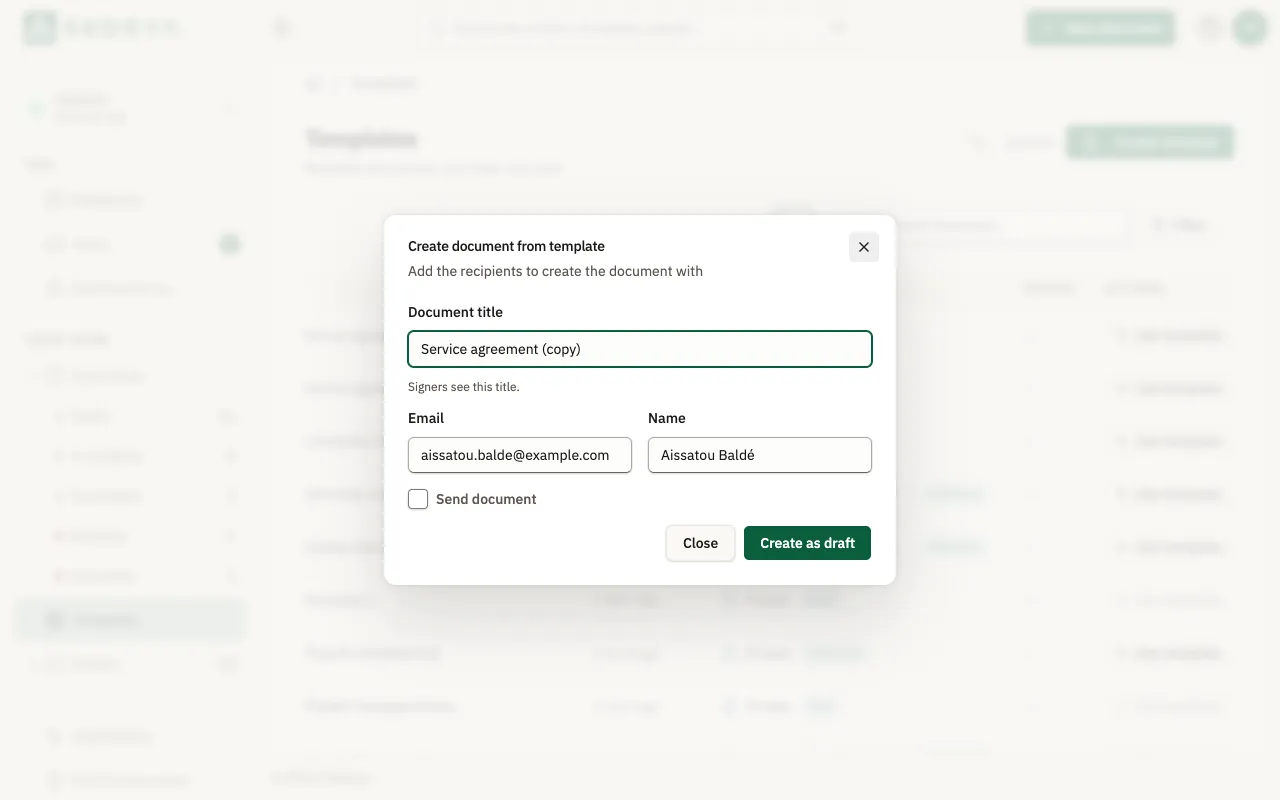
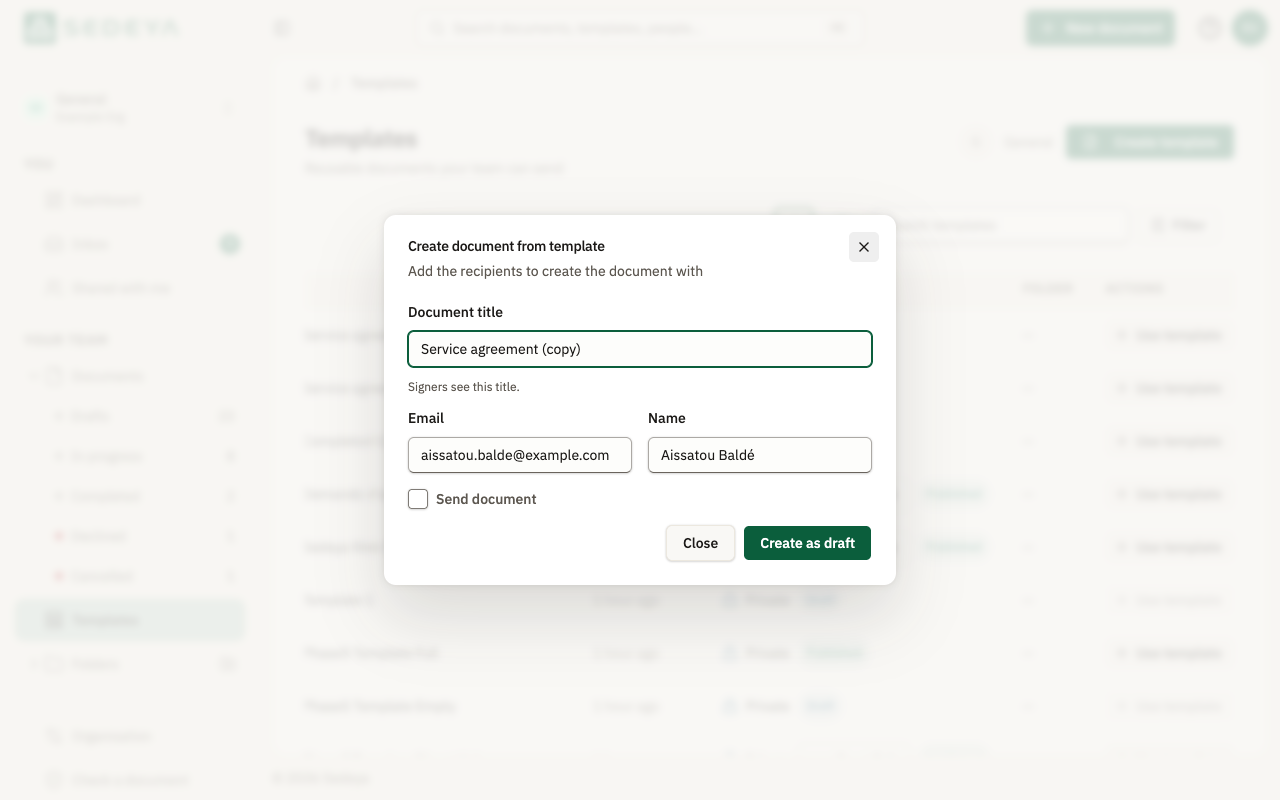
Back in “Templates”, click “Use template” on its row. In “Create document from template”, set the “Document title”, the signer's Email and Name, then click “Create as draft”.