
Guide 1 of 6
Send your first document
Upload a PDF, add a signer and send it for signature in six steps.
On this page
Steps
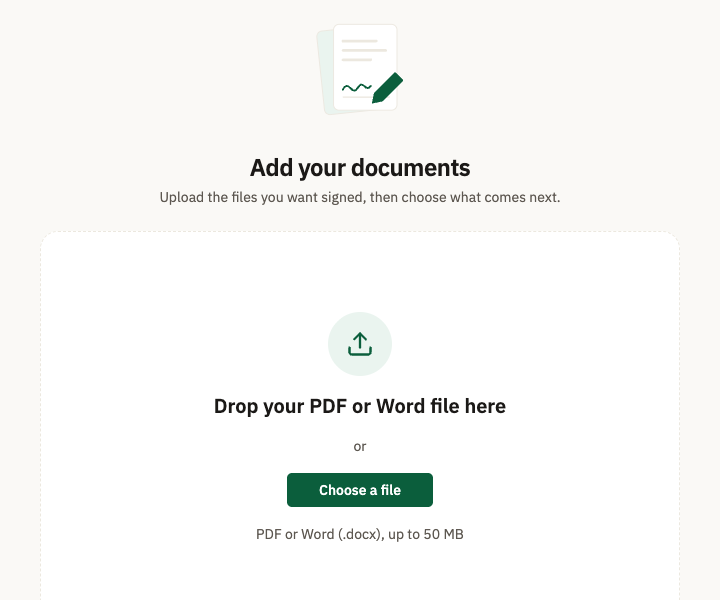
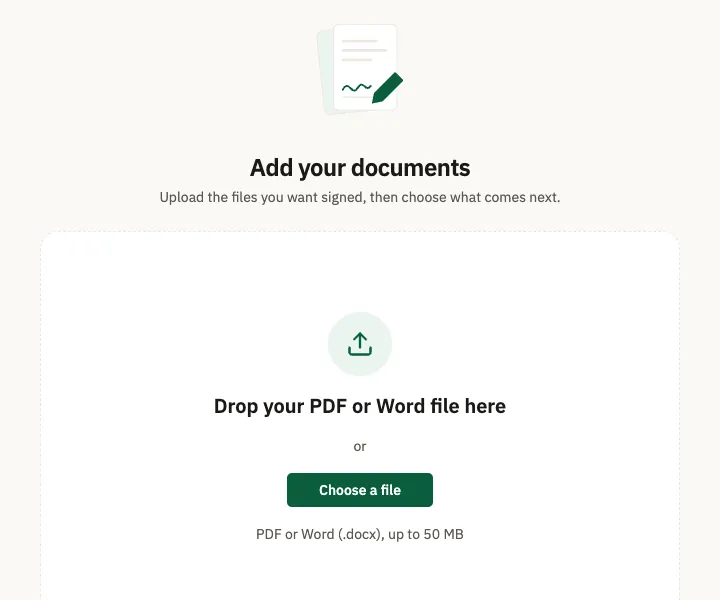
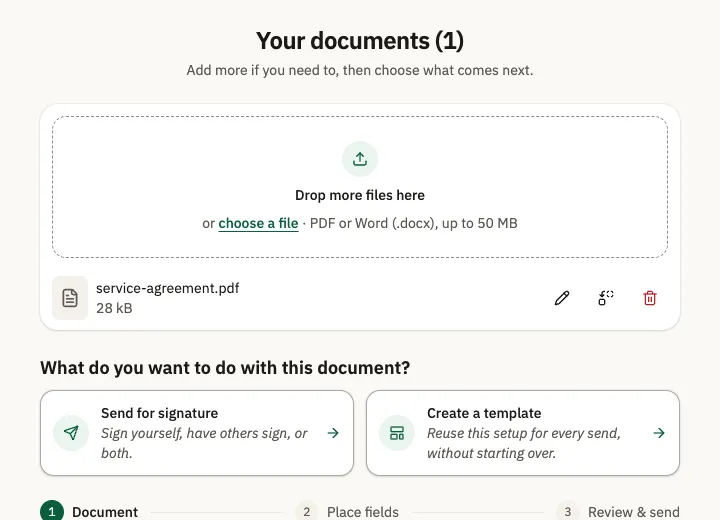
Upload your PDF
On “Add your documents”, click “Choose a file” to upload the PDF.
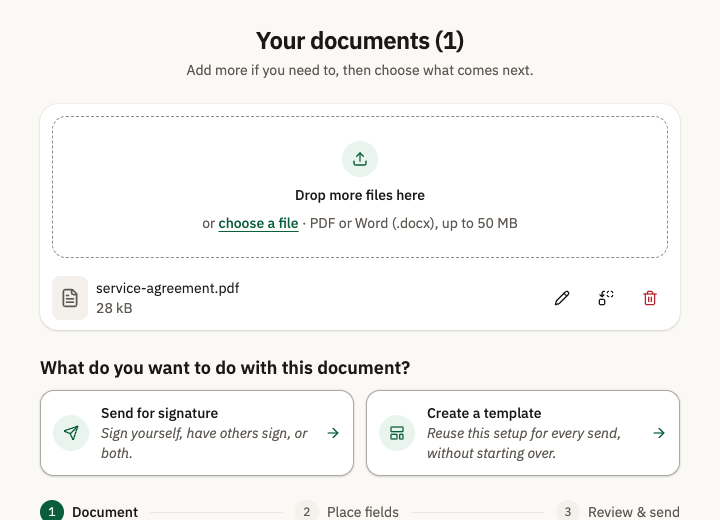
Choose how to send it
With the file listed, choose “Send for signature”. The other card is “Create a template”.
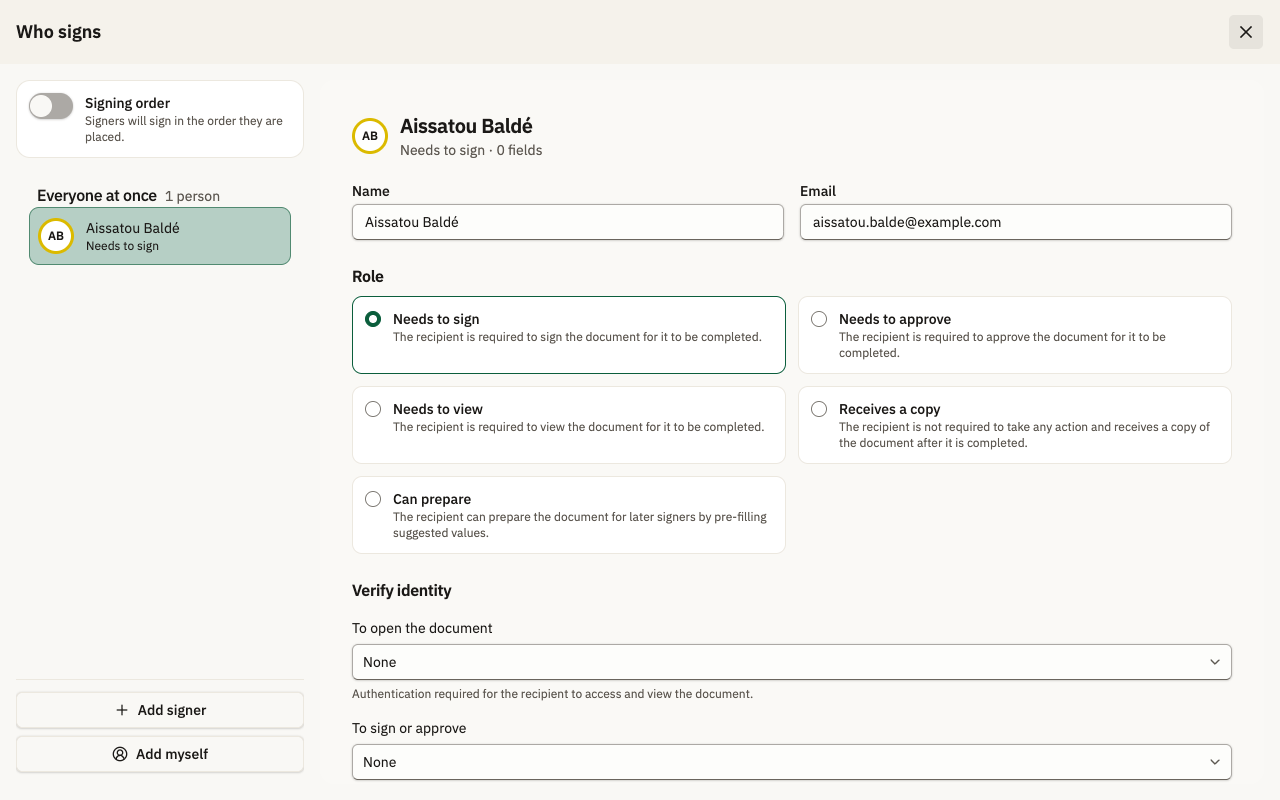
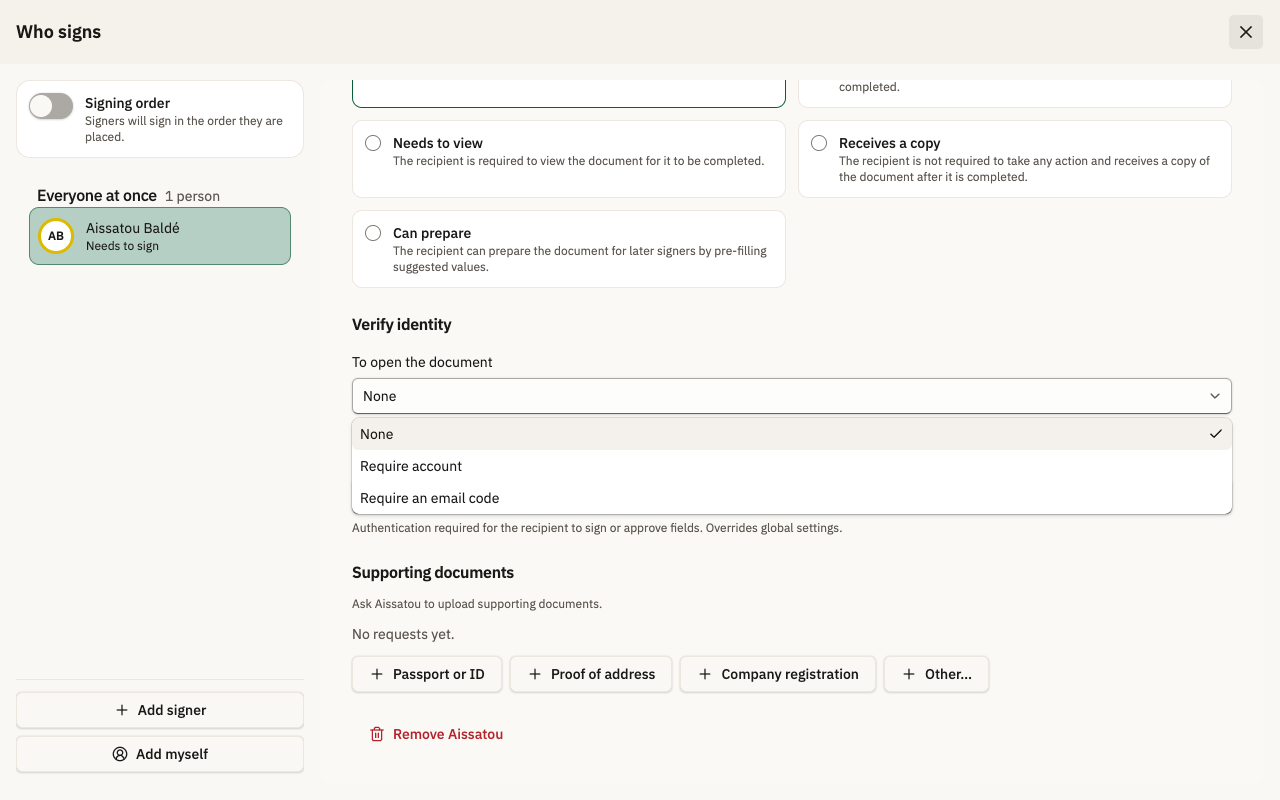
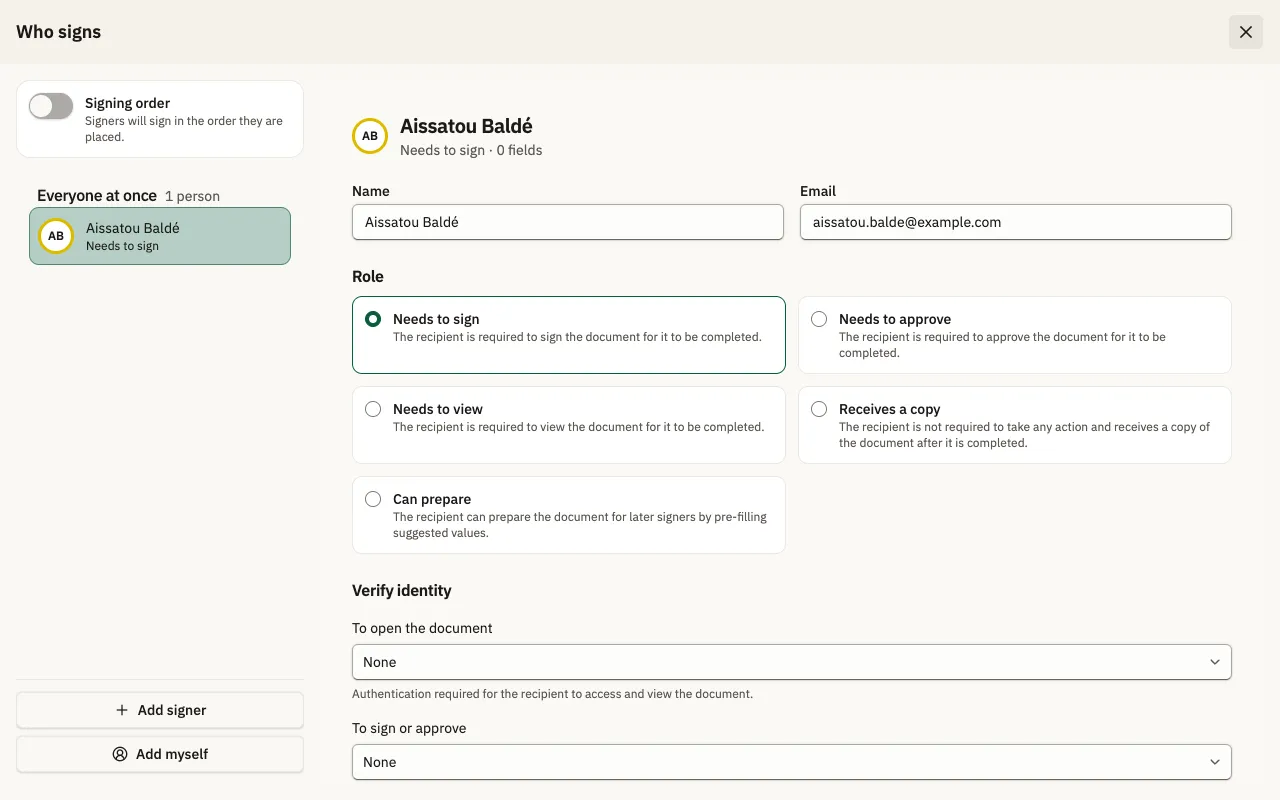
Add your signer
In “Who signs”, click “Add signer”, then enter Name and Email. The role is “Needs to sign”.
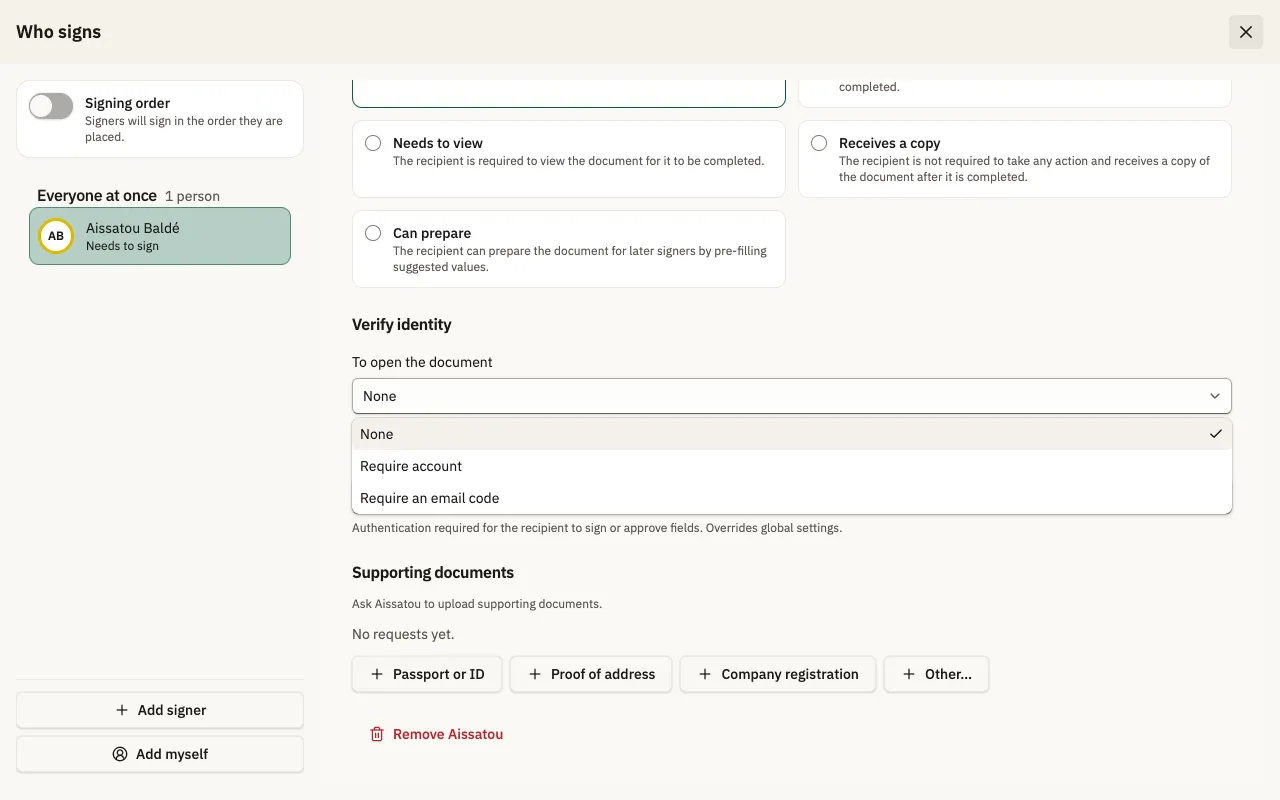
Set who can open it
Under “Verify identity”, open “To open the document” and choose None, “Require account” or “Require an email code”.
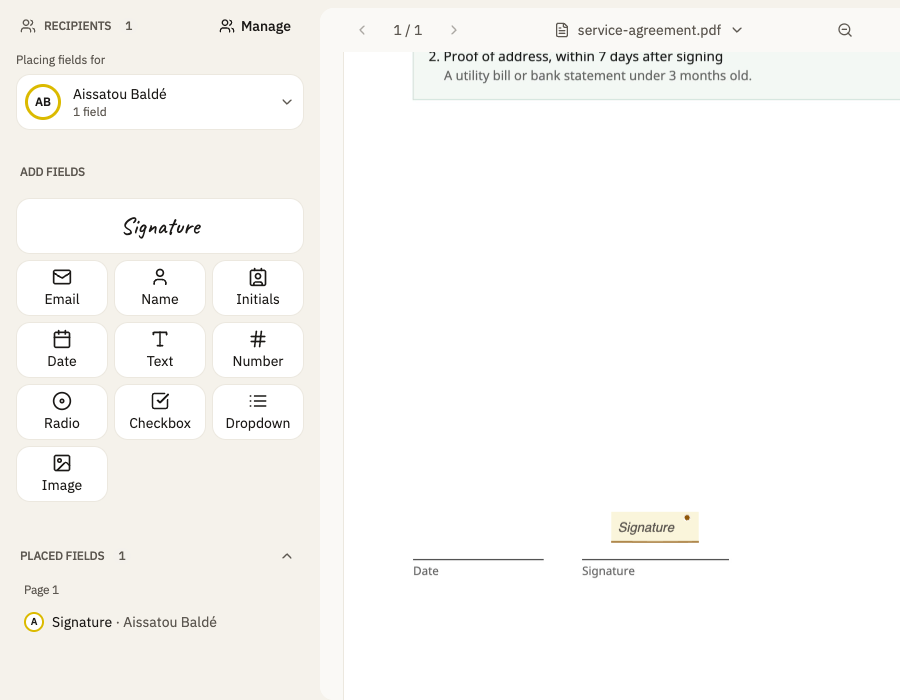
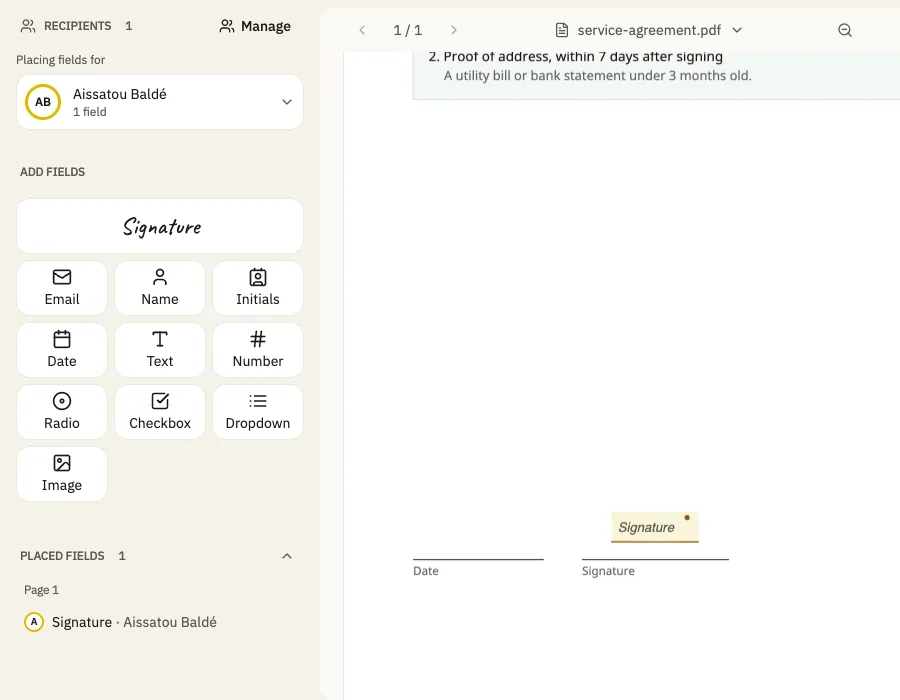
Place the signature field
On “Place fields”, pick the signer, click the “Signature” tool, then click the page where it goes.
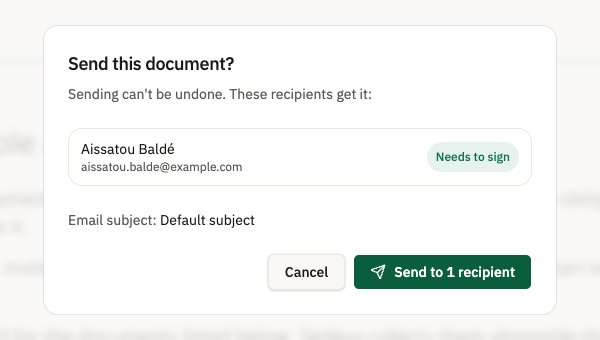
Review and send
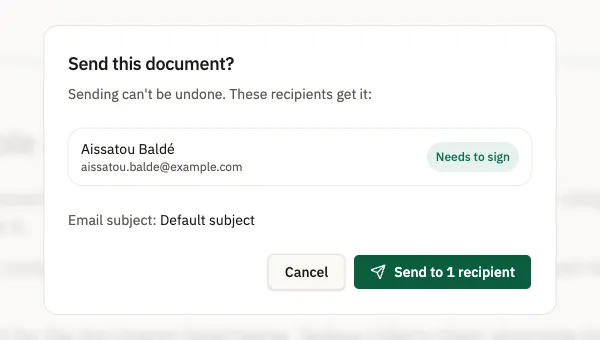
Click “Next: Review & send”, then “Send to 1 recipient” in the “Send this document?” dialog.