
Guide 6 of 6
Verify a signed document
Check that a signed file is the one Sedeya sealed, and see who signed it and when.
On this page
Video coming soon
Steps
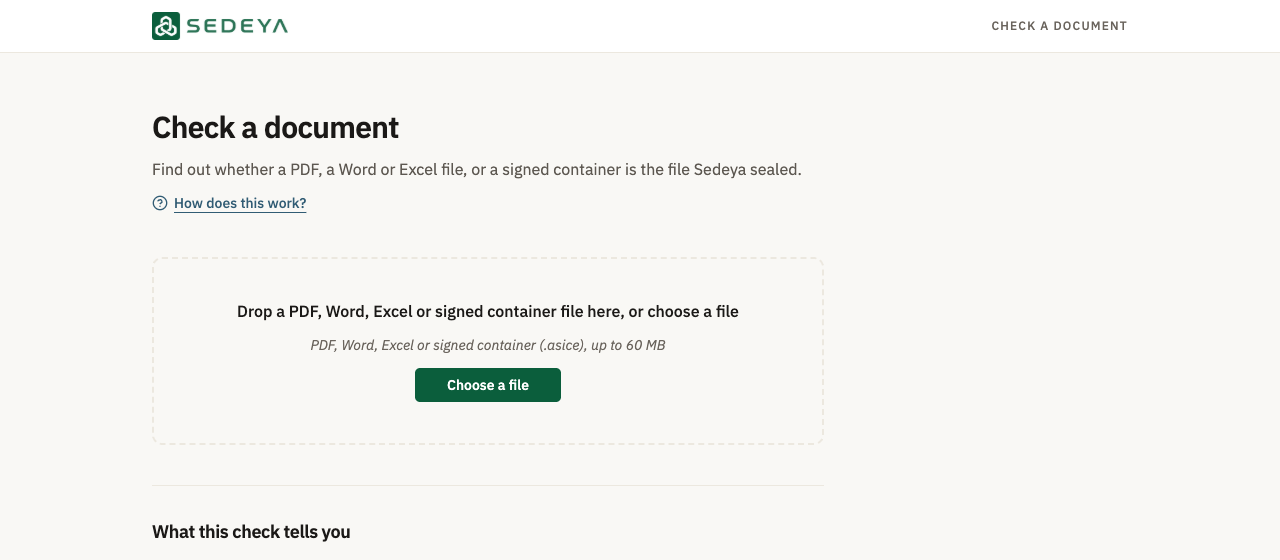
Open Check a document
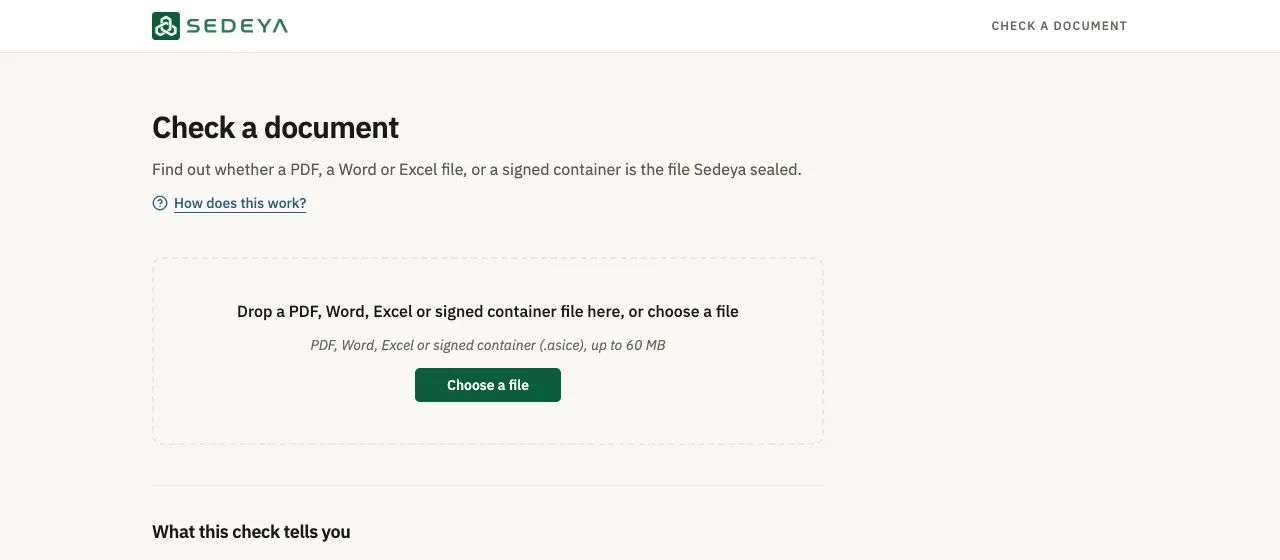
Open “Check a document”: in the app it is in the sidebar, and the page works without an account.
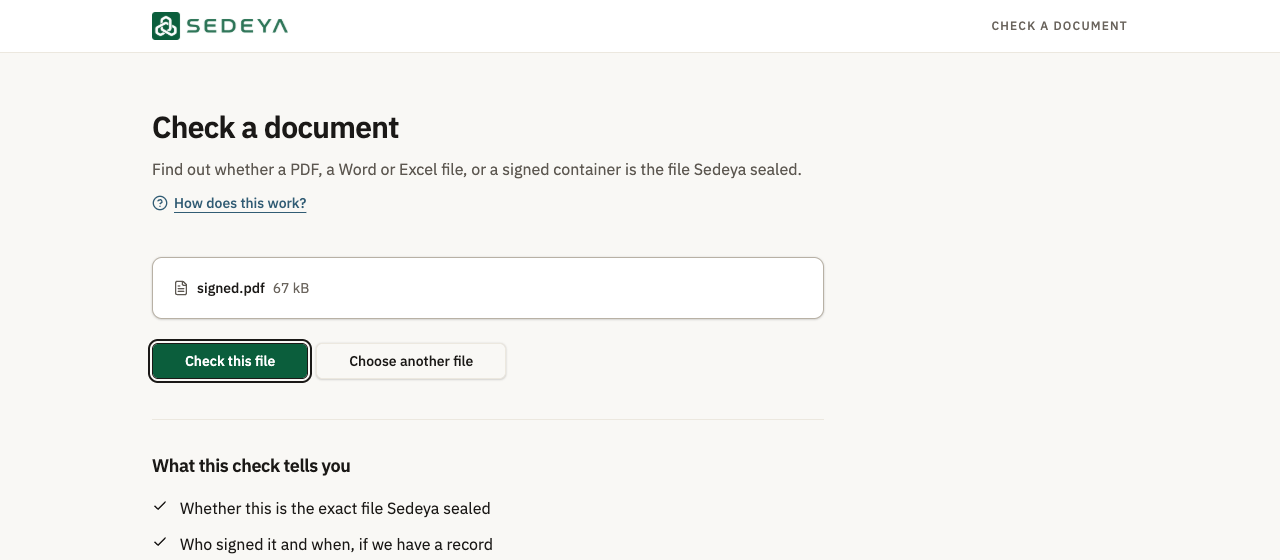
Choose the signed file
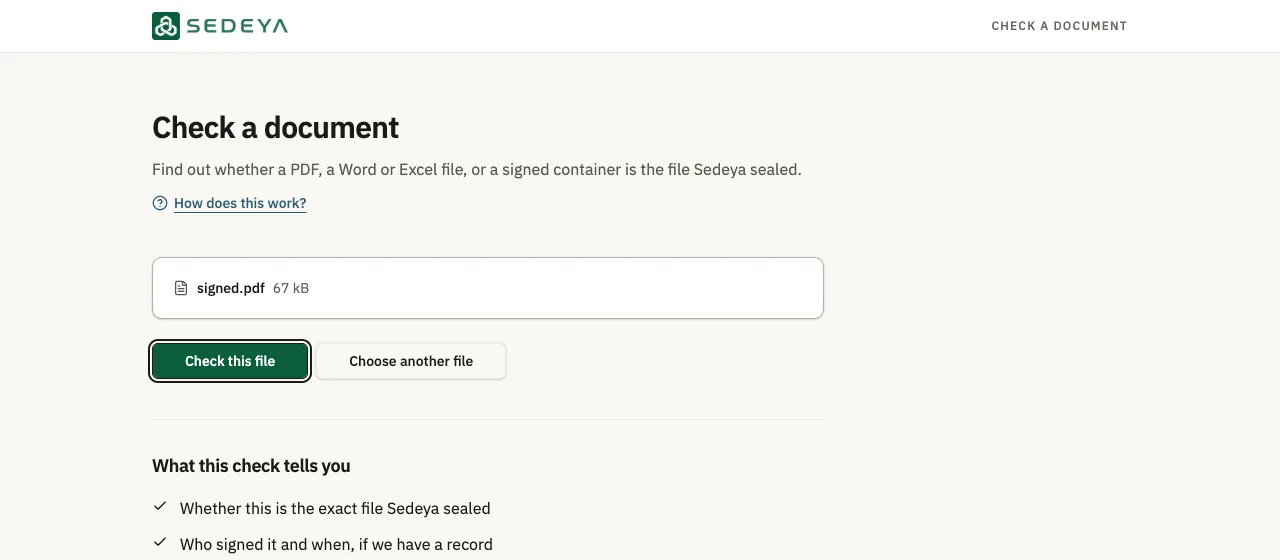
Click “Choose a file” (or drop the file) and pick the signed PDF; “Check this file” appears.
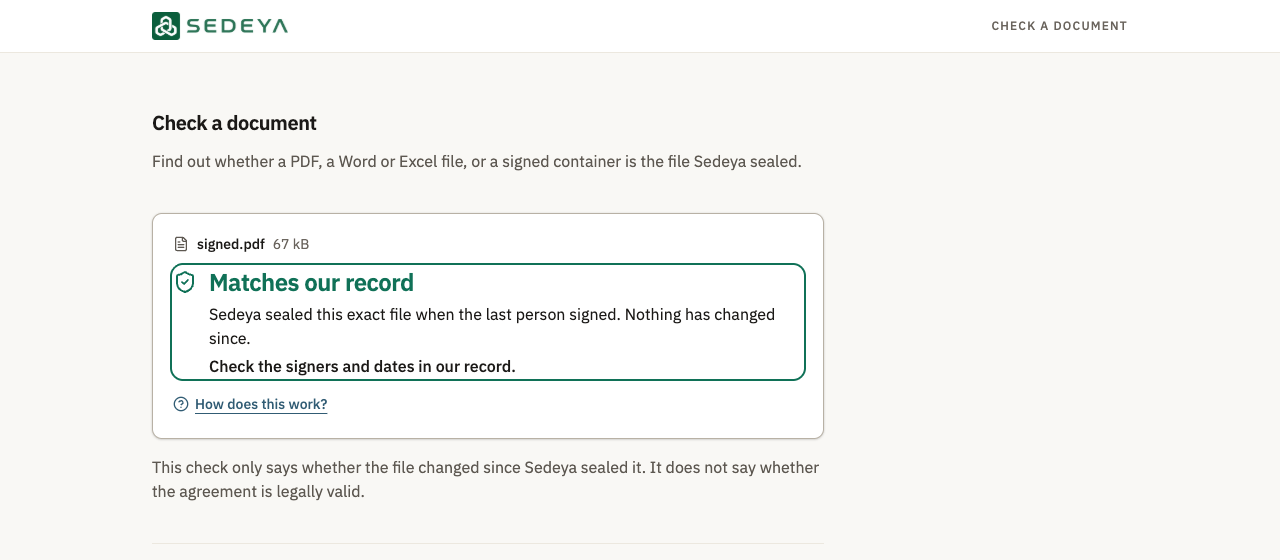
Check it
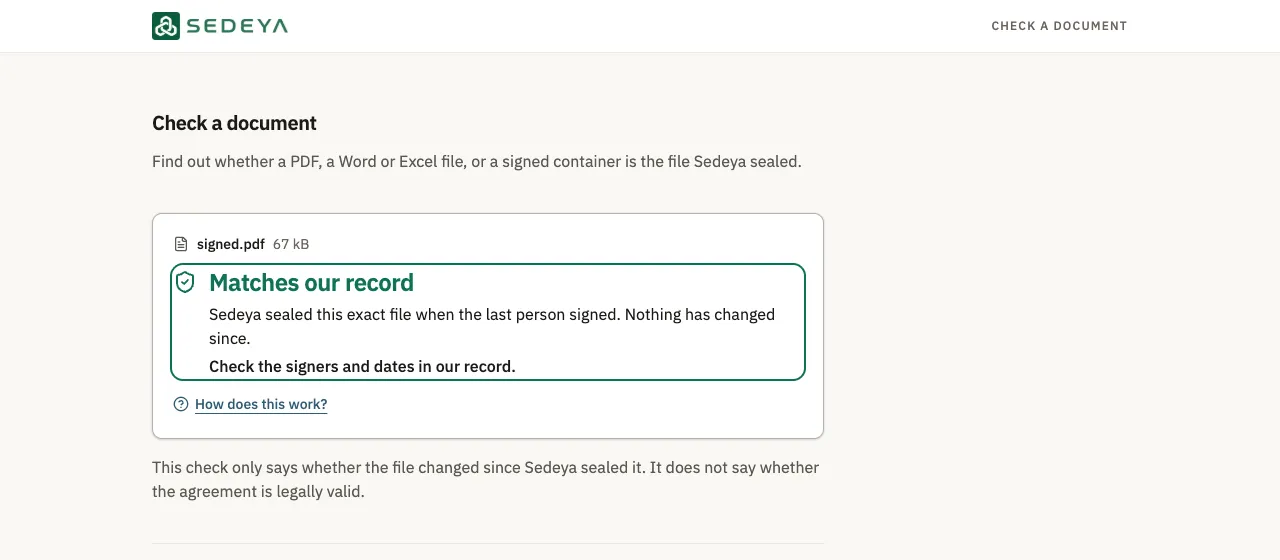
Click “Check this file”. “Matches our record” means Sedeya sealed this exact file and nothing has changed since; “Not sealed by Sedeya” means the file has no Sedeya seal.
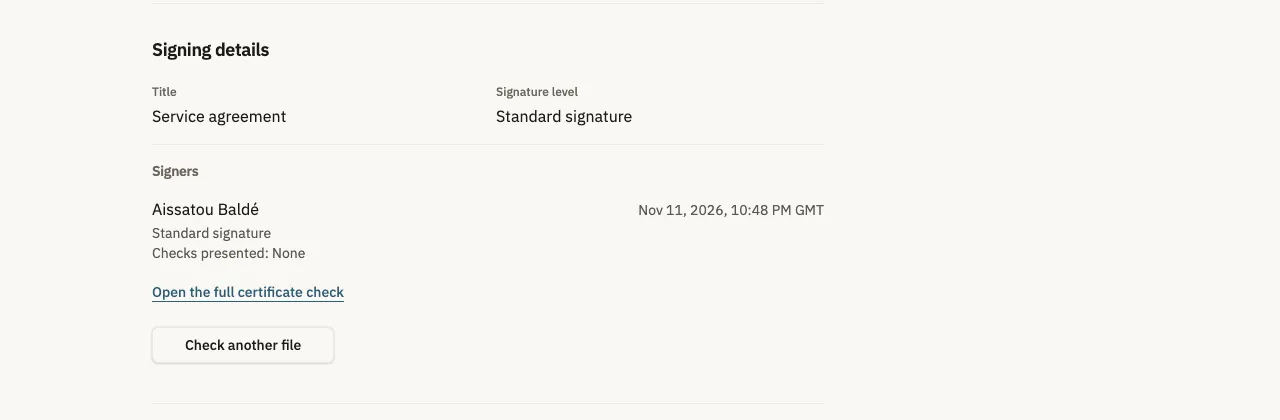
Read the signing details
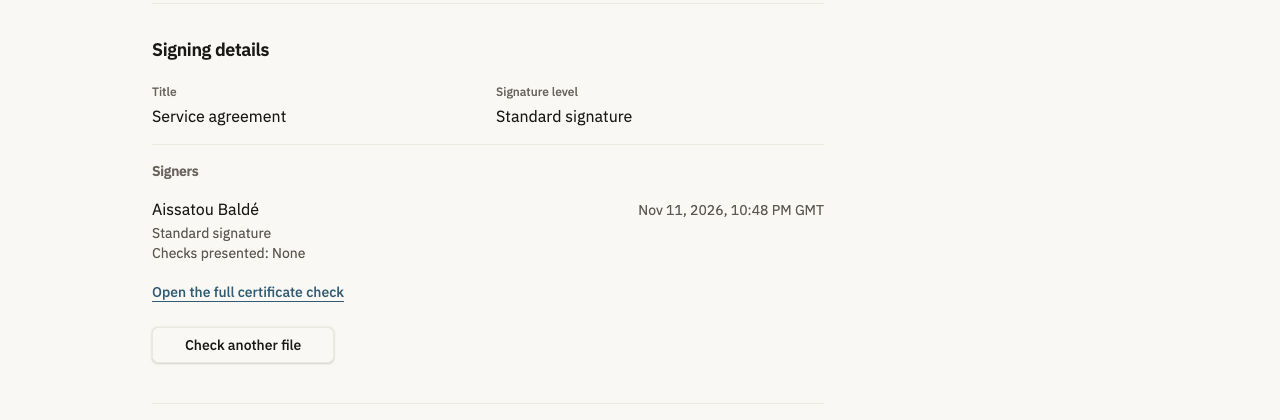
Under “Signing details”, see the Title, the “Signature level” and each signer with the date. “Open the full certificate check” goes deeper.