
Guide 2 of 6
Add signers and place fields
Add several signers, set the signing order and place fields for each one.
On this page
Video coming soon
Steps
Open Who signs
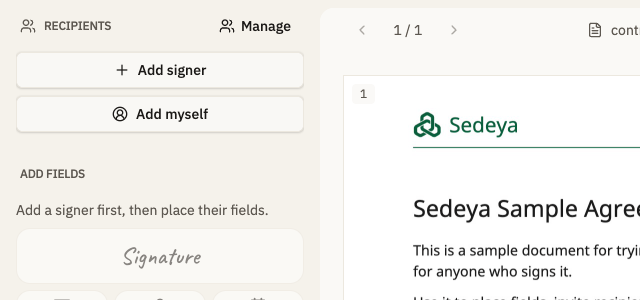
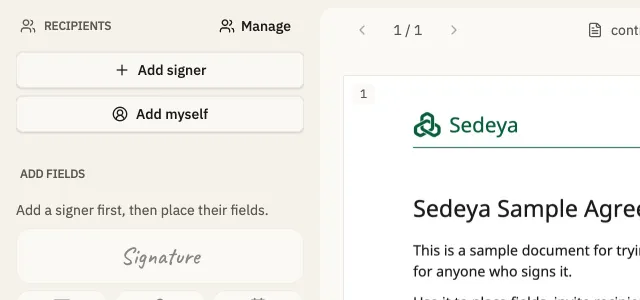
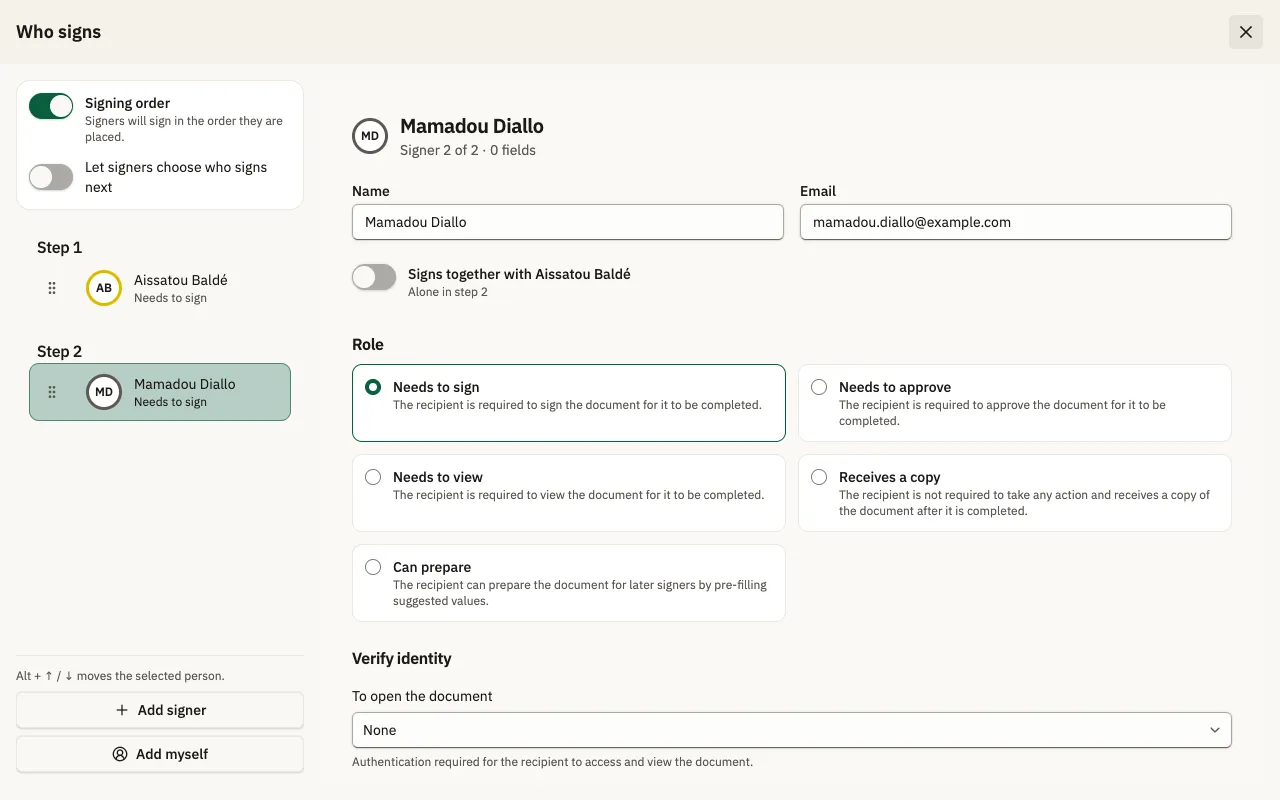
On “Place fields”, click “Add signer” in the Recipients panel to open “Who signs”.
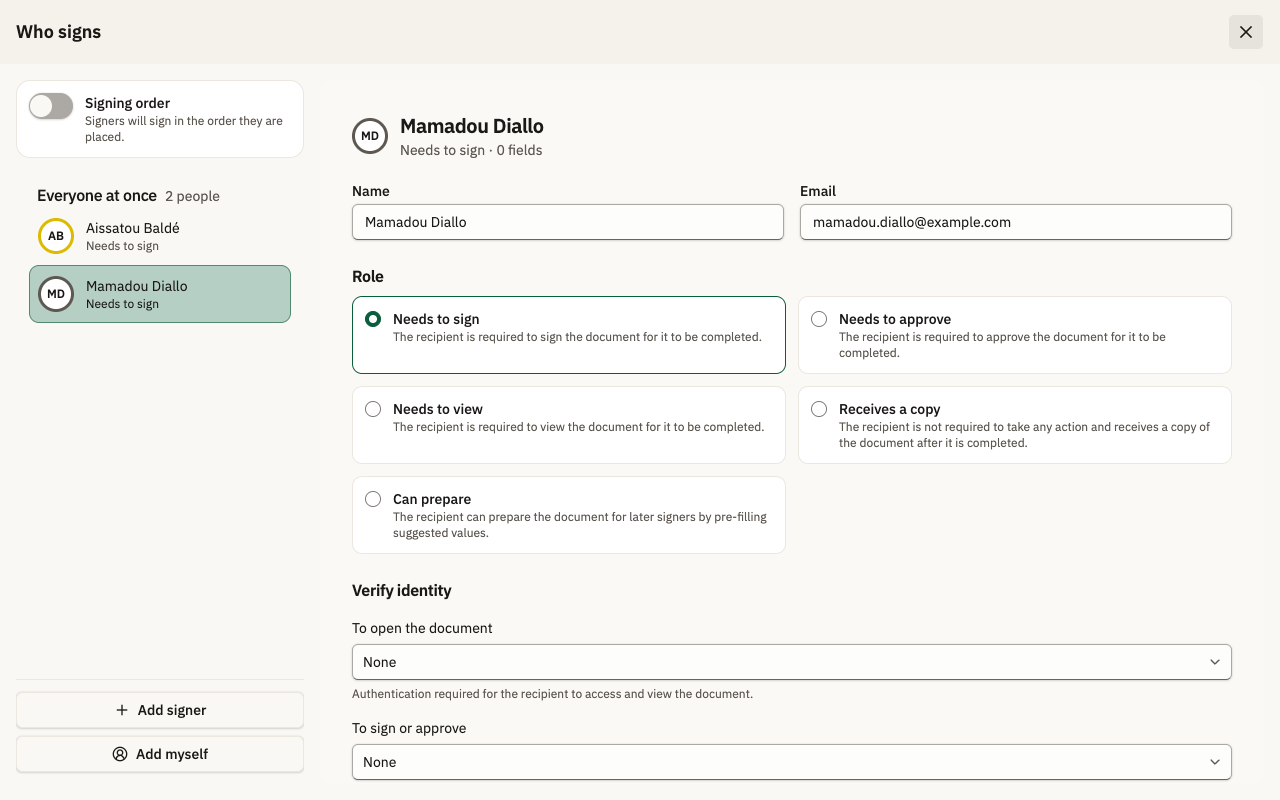
Add each signer
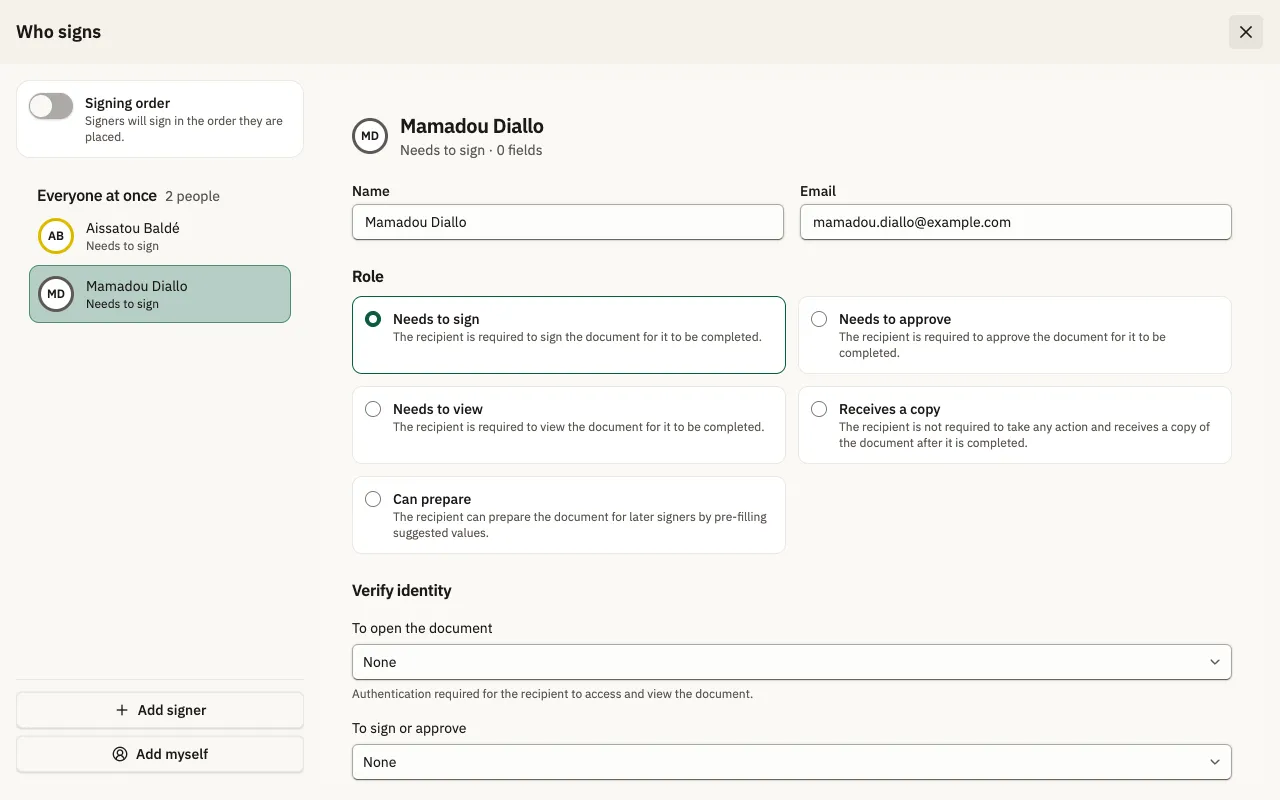
Enter Name and Email, then click “Add signer” again for the next person. The role stays “Needs to sign” unless you pick another.
Set the signing order
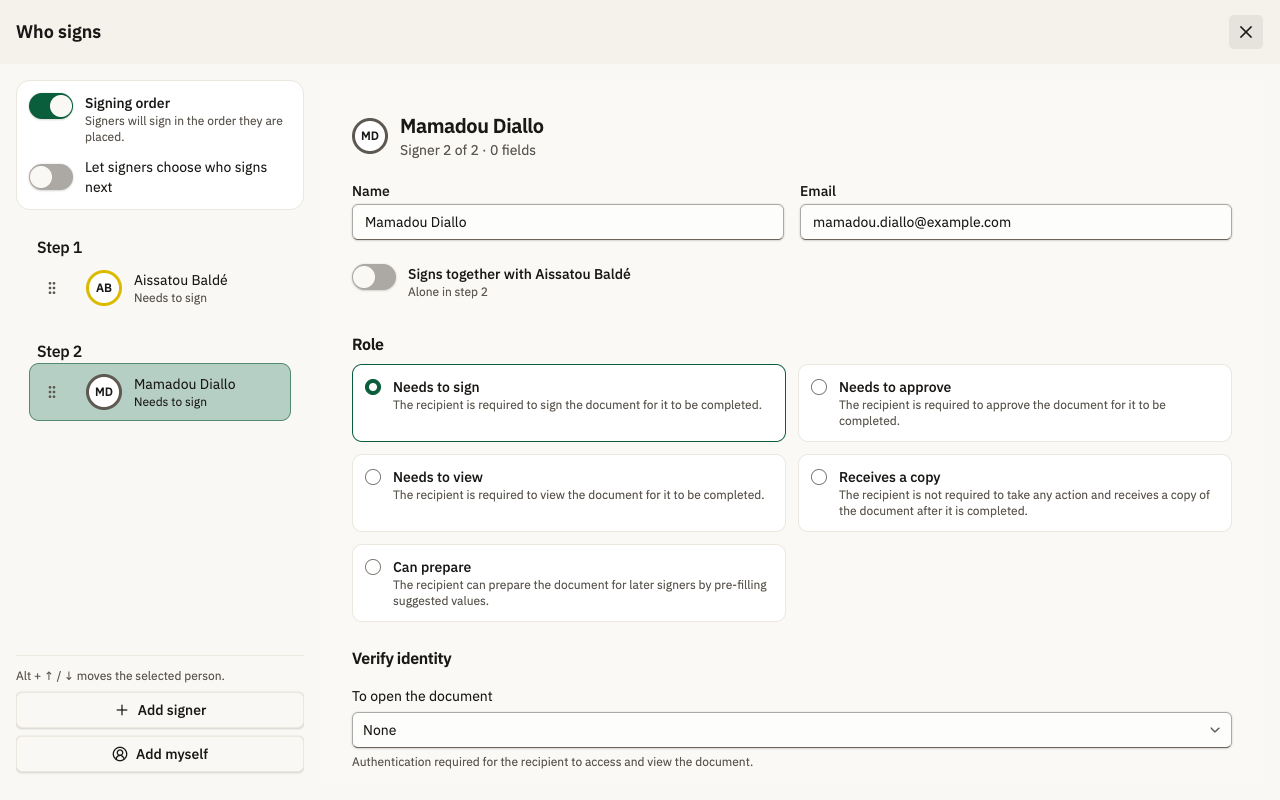
Turn on “Signing order”: signers are listed as “Step 1”, “Step 2” and sign in that order. Turn on “Signs together with” to share a step.
Choose who you place for
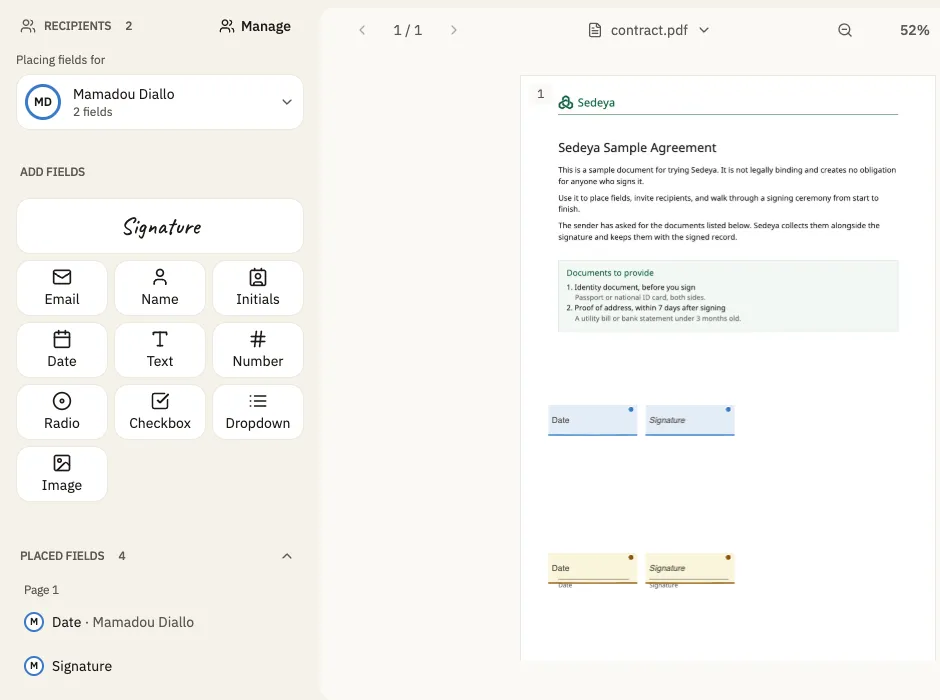
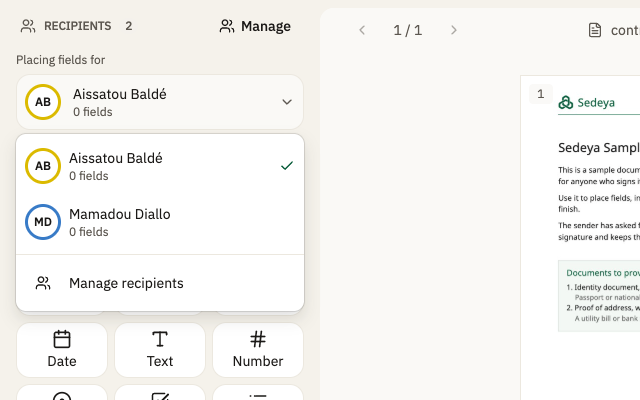
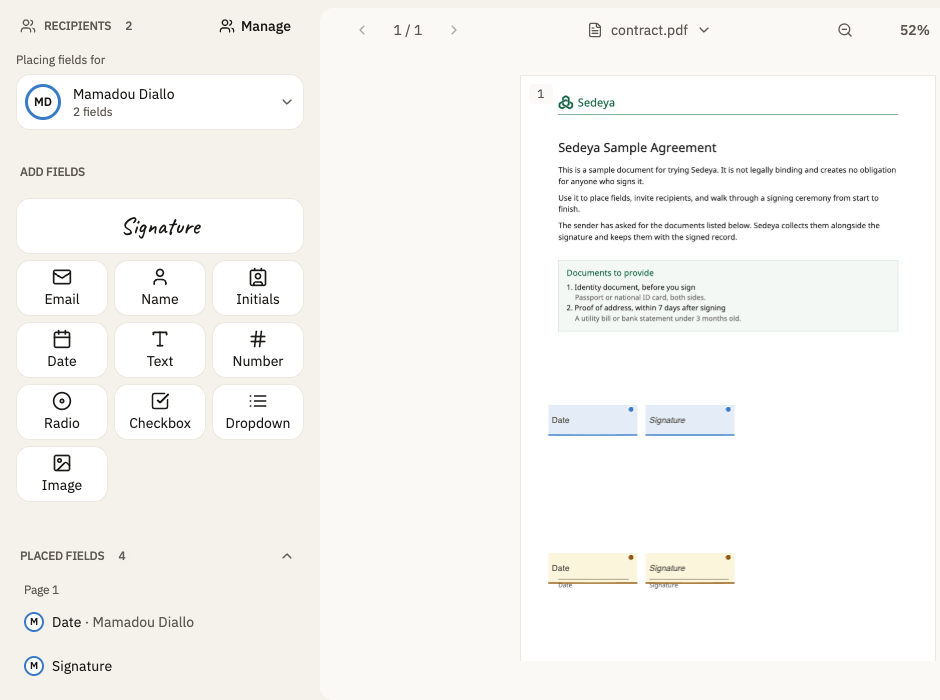
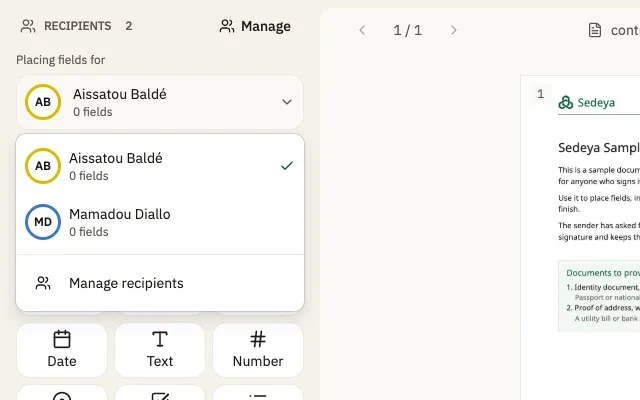
Click “Back to Place fields”, then open “Placing fields for” and pick the signer whose fields you are placing.
Place fields for each signer
Click a tool such as “Signature” or “Date”, then click the page where it goes. Repeat for the next signer; “Placed fields” lists every field.